Yard settings
Who you are to sellers, what your public pages say, and where you make instant offers.
- Business Your legal business name, phone, country and time zone, and where each one shows up.
- Public pages The wording of your Terms and Privacy pages, and the address of the page where sellers agree to texts.
- Service area Where you make instant offers, the locations your trucks leave from, and what a seller outside your reach sees.
Yard settings is where you tell your site who you are and where you buy. Sellers see some of it directly, like your phone number. Your texts, your public pages and the offer's good-until date all draw from it.
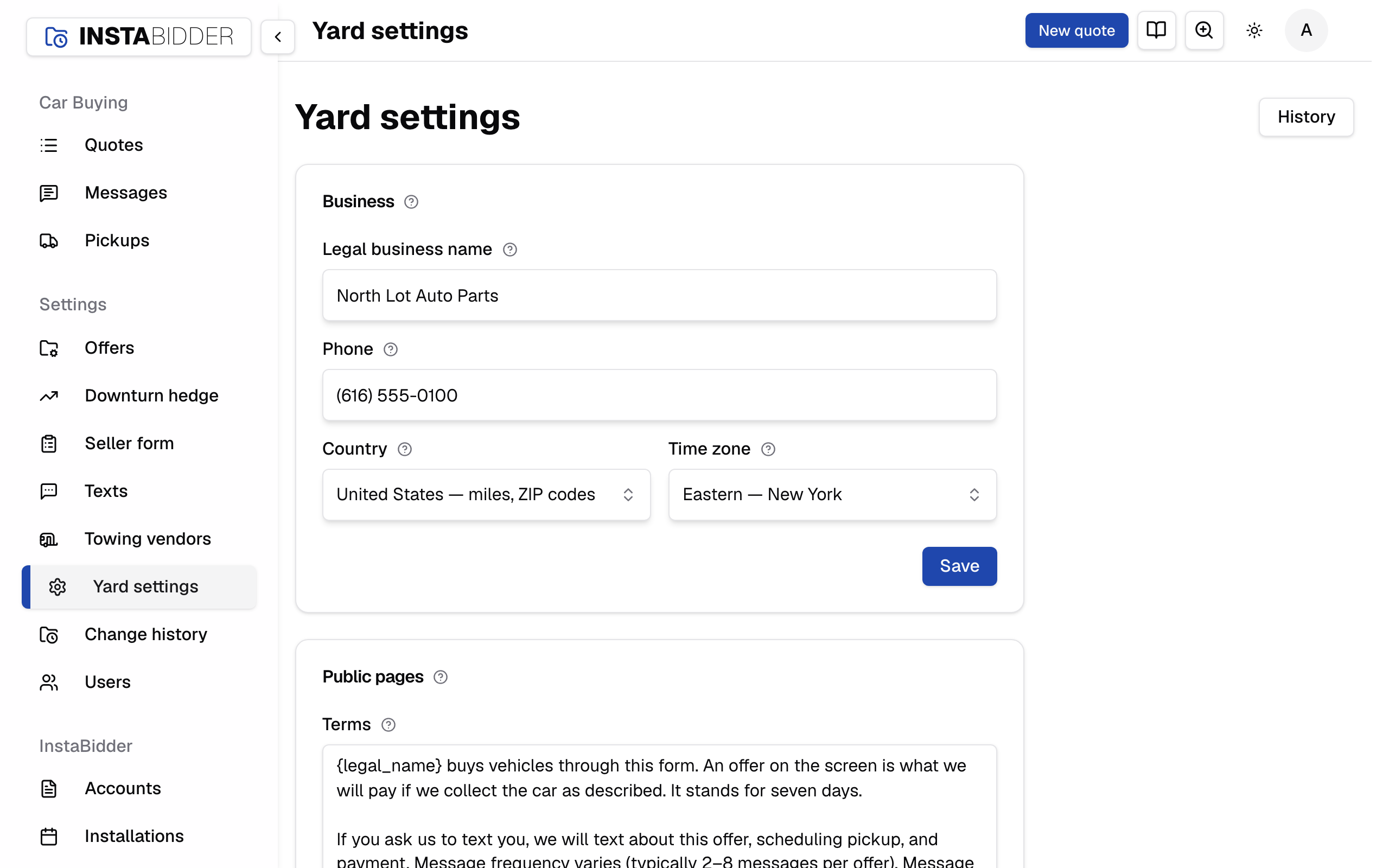
Open it from Yard settings in the sidebar, or its tile on your home page.
What's on this page
Four cards, top to bottom:
- Business: your legal name, phone, country and time zone.
- Public pages: the wording of your Terms and Privacy pages, and the opt-in page address.
- Service area: whether sellers anywhere get an instant offer, or only sellers within reach of one of your locations.
- Locations: the lots your trucks leave from, each with an address and an optional radius.
The first three cards save on their own. Change a field, then use that card's Save button. Saving one card never saves another, so a half-finished edit in the next card is left alone. A location has its own form with its own Save.
After a save the page says "Saved." and scrolls back to the card you saved. If a field is wrong, the page shows what to fix at the top and beside the field, and nothing in that card is saved.
Your website and office address aren't here: they're on Business info, which the Business card's Business info button opens.
Who can change it
Only an Admin can change these settings. Staff see them read-only.
Every save is recorded in Change history, under the Yard area. History at the top of the page opens Change history showing only those changes: this page's cards, your locations and the setup steps.
Saving at the same time
If someone else saves a card after you opened the page, your save is refused with a message naming them: "Sam saved this after you opened it. Save again to replace their changes."
Save again to keep your version, or reload the page to see theirs first. If it was you in another tab, the message says so. Removing a location someone just changed is refused the same way; the page reloads with their change, and you try again.
If you serve Canada
Choose Canada under Country on the Business card. Distances and radii read in kilometres, and postal codes replace ZIP codes.