Inviting people
See who has access to your site, invite someone by text, correct an invite or change a role, and resend, disable or enable their account.
Users is where an Admin decides who can sign in to your site. Open it from Users in the sidebar. Staff don't see it.
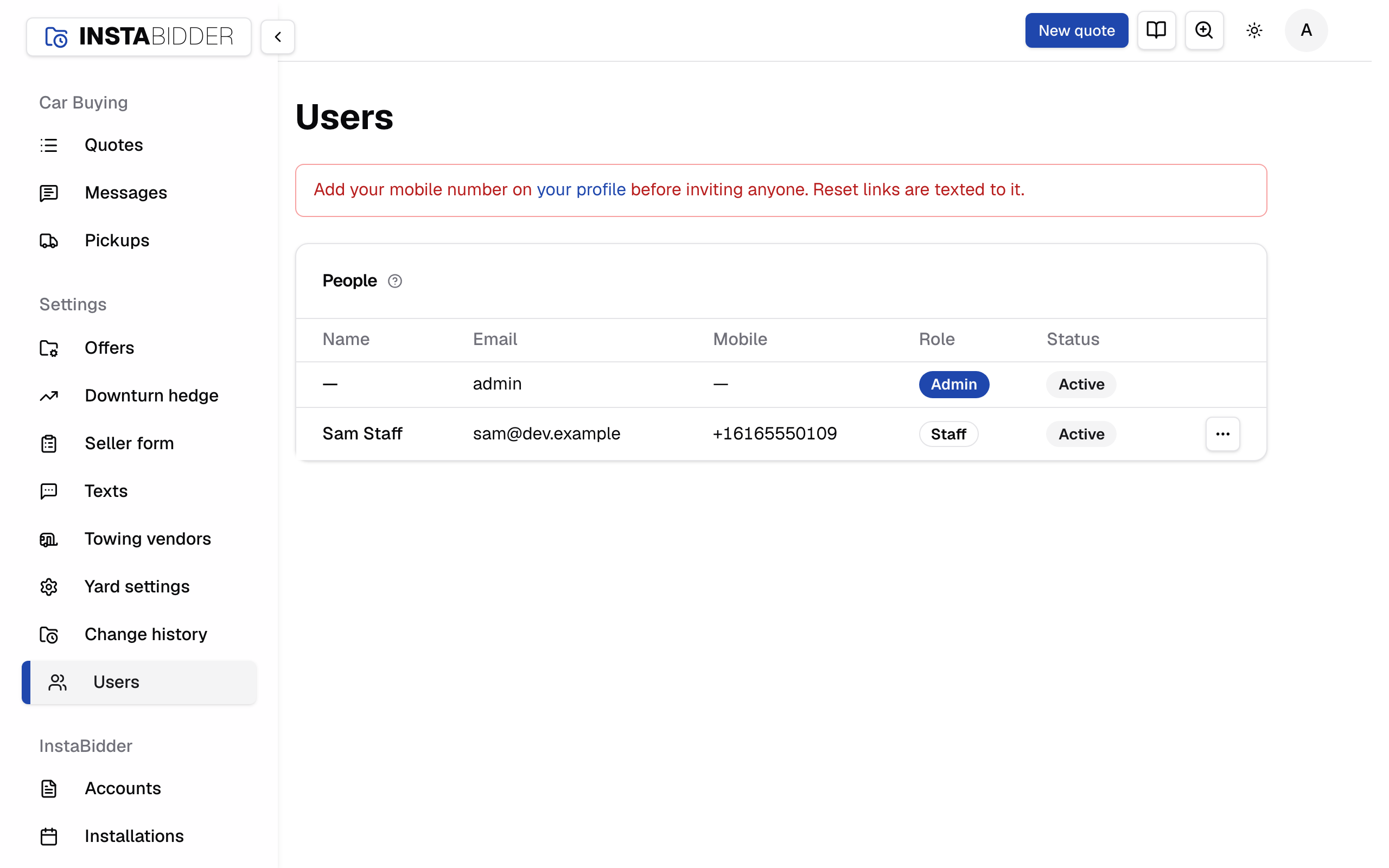
Nobody creates their own account. An Admin invites each person with a name, an email and a mobile number, and the invite is a text with a link where they choose their password. Your site has no email invites: everything goes by text.
People
Everyone with access to your site, one row each, with their role and whether they can sign in. A row's menu edits them, resends an invite, disables or enables them.
The table's columns are Name, Email, Mobile, Role and Status. A dash stands in for a name or mobile that's blank. The status reads:
- Active: they've chosen a password and can sign in.
- Invited, with the hours left: the invite text went out and its link still works.
- Invite expired: the link is more than 48 hours old.
- Disabled: they can't sign in.
InstaBidder's own support sign-in, which InstaBidder's team uses to set up and help with your site, isn't on the list.
A row's menu holds only what applies to that person:
- Edit: for anyone except yourself. It changes their role (see Changing someone's role) and, for someone who hasn't accepted yet, corrects their invite (see Correcting an invite).
- Resend invite: for someone who hasn't accepted yet. It asks "Resend the invite?", with the number the new link goes to, and Resend texts it. The new link works once, for 48 hours, and the old one stops working. It's missing while texting is off.
- Disable: for anyone except yourself. It asks "Disable this person?" and you confirm with Disable.
- Enable: for someone who is disabled. It asks "Enable this person?" and you confirm with Enable.
Cancel in any of these closes it and changes nothing.
If someone else changed the person after you opened the page, your site refuses, names who, and redraws the list: "Sam changed this after you opened it. It's current now; try again."
Disable
Disabling signs the person out everywhere straight away and cancels any invite or reset link they hadn't used. They keep their record and their history.
The page then says they're "disabled and signed out everywhere." You can enable them again.
You can't disable yourself; ask another Admin. You also can't disable the last Admin who can sign in, so there is always someone who can let people back in. Your site says they're "the last Admin who can sign in, so can't be disabled."
If the person is the only one picked to get a text to your team, your site stops you and names the text. Pick someone else under Your team's texts first, or turn that text off.
Enable
Enabling a person who had set a password lets them sign in again with it. Enabling someone who never set one doesn't send anything.
The page says which: they "can sign in again with their existing password", or they need the invite resent. Resend invite gets them a new link.
Correcting an invite
Until someone has chosen a password, Edit on their row opens "Edit this invite" with their name, email, mobile number and role. Change what was wrong and choose Save; Cancel changes nothing.
- A new mobile number gets the invite texted to it straight away, and the link sent to the old number stops working. The page says "Invite texted to" them.
- Anything else saves without a text. The page says "Saved" and their name.
- Someone disabled is corrected without a text. Enable them, then resend their invite.
The fields are checked the same way as Invite someone: an email already on the list, or a mobile that isn't ten digits, is refused with what to fix. If someone else changed the person after you opened it, your site refuses, names who, and keeps what you typed so you can save again.
Once a person has chosen a password, Edit opens "Edit this person" and changes only their role. Their name and mobile are theirs to change on their profile, and their email stays as it is. See Changing someone's role.
Someone who left and came back
A disabled person's email stays on the list, so you can't invite them again with it. Enable them instead. If they never set a password, correct their invite with Edit if anything changed, then resend it after enabling.
Invite someone
Add a person with a name, email, mobile number and role, and your site texts them a link to choose their password. The link works once, for 48 hours.
Choose Send invite. Your site adds the person to the list, with the status Invited, and says "Invite texted to" them. The text names you and says you invited them to InstaBidder, for example "Jo Rivera invited you to InstaBidder. The link works once and expires in 48 hours." The link takes them to a page where they choose a password; see Signing in.
If the text can't be sent, the person is still on the list and the page tells you why. Use Resend invite to try again.
A field that's missing or wrong is marked in red with what to fix, and nobody is added until every field passes.
When the card is missing
The Invite someone card only appears when your site can text and you have a mobile number of your own. Otherwise a notice takes its place.
- "Texting isn't turned on for your site yet": invites go out by text, so you can invite people once it is. InstaBidder is setting it up, and there's nothing you need to do.
- "Add your mobile number on your profile before inviting anyone": your own reset links are texted to your mobile, so an Admin needs one first. Add it on your profile.
Name
The person's name, as it shows in the list and in Change history. Up to 120 characters.
They can change it later on their own profile, as their display name. Leave it empty and your site says "Enter their name, up to 120 characters."
The email the person signs in with. It must be one nobody else on your list uses.
Capital letters don't matter. If the email is already on the list, your site says "Someone with that email is already on the list." Two people can't share an email, and that includes people who are disabled.
An email needs an @ and no spaces; otherwise your site says "Enter a valid email address, like [email protected]." Until they accept, Edit corrects it; after that it can't be changed.
Mobile number
The mobile that gets the invite text and, later, their password reset links. Enter a US or Canadian mobile number.
Type it with its area code, for example (602) 555-0134. Brackets, spaces and dashes don't matter, and a leading 1 is fine. Anything that isn't ten digits gets "Enter a US or Canadian mobile number."
Check it before you send. The invite is the only way into your site, and its link works for whoever opens it first.
Warning
If you sent an invite to the wrong number, choose Edit on that person's row at once and save the right number. The link sent to the wrong number stops working, and a new one goes to the right number.
Role
Admin can change settings and invite people. Staff work quotes, messages and pickups, and see settings read-only. An Admin can change it later with Edit.
Pick Staff unless the person needs to change settings or invite others. It's the default. Edit on their row changes it, before or after they accept; see Changing someone's role. Roles lists what each can do.