Quotes
Every seller's visit in one list, opened on the ones that need you, with search, filters and a sort.
Quotes is the list of every seller's visit to your site, online or taken on a call. It opens on the quotes someone on your team can act on, so the first thing you see is the work.
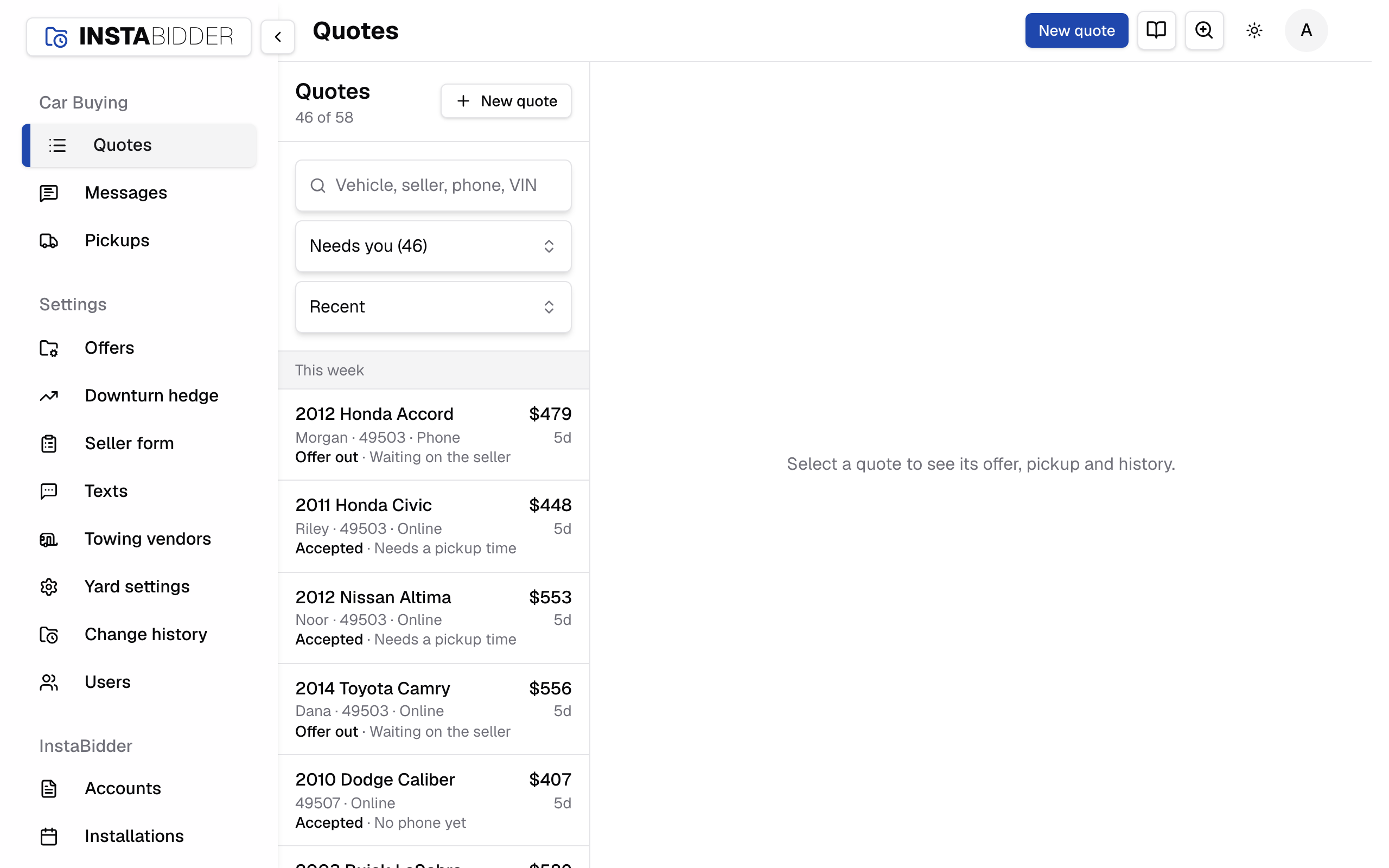
Click a quote to open it. On a wide screen the list stays on the left while you work the quote beside it, so you can go down the list one after another. On a phone the quote opens full screen, with an arrow back to the list. Working a quote covers the quote itself.
Under the Quotes title is the count: the number of quotes in the list, or "12 of 140" when a filter or a search is narrowing it.
A row in the list
Each row shows the car, the offer, the seller, how long ago it last changed, and where the quote stands.
- First line: year, make and model ("No vehicle yet" before the seller found it), and the offer on the right ("No offer" before there is one).
- Second line: the seller's first name, or their number when they gave no name, then the ZIP, then Online or Phone for how the quote came in. Before there's a name, a number or a ZIP, it reads "No seller yet". The time on the right is how long ago it changed (under Newest, how long ago it started): "now", "12m", "3h", "2d", then a date.
- Third line: the status in bold and a detail after it, such as Offer out · Waiting on the seller.
Rows are grouped under Today, Yesterday, This week, This month and Earlier.
Needs you
The view the list opens on: quotes with an offer out, a yes waiting for a pickup time, or a booked pickup. Everything else is under the other filters.
When nothing needs you, the list says "Nothing needs you right now." Press Show all quotes to see the rest.
Filter by status
Picks which quotes the list shows. Each choice shows its count, so you can see at a glance how many offers are out or pickups need a time.
| Filter | Shows |
|---|---|
| Needs you | Offer out, To schedule and Booked together |
| All quotes | Every quote |
| Offer out | The seller has the offer and hasn't said yes or no |
| To schedule | The seller said yes and the pickup has no time yet |
| Booked | The pickup has a tow company and a time |
| Picked up | The car came in |
| Declined | The seller said no |
| In progress | The seller is on the form right now |
| Didn't finish | The seller left the form before giving a number |
| Out of area | The car is past your service area |
| Expired | The quote ran out before it was finished |
Didn't finish
A seller who left the form for over an hour before giving a phone number. There's no one to call, so these stay out of Needs you.
Most visits end this way: someone checks a price and leaves. They're kept so you can see the demand, and so the car and the answers are on record if the seller calls in later. Search for the car or the ZIP to find one.
A visit that's still going counts as In progress until it has sat for an hour.
Search quotes
Finds a quote by car, seller's name, phone, VIN, plate, ZIP or quote number. A search looks through every quote unless you picked a filter first.
- Type three or more digits to match part of a phone number or a quote number, for example the last four digits of the seller's phone.
- Type
#and the number, such as#1042, for one quote. The quote number is the one a seller reads you on the phone. - A year, a make or a model matches every quote for that car.
When nothing matches, the list says "No quotes match." with Show all quotes under it.
Sort quotes
Orders the list. Recent puts the quote that changed last at the top; Newest, the one that started last; Top offer, the highest offer; Next pickup, the soonest booked pickup.
- Recent (the default) and Newest keep the day groups.
- Top offer lists the highest offer first, without the day groups. Quotes with no offer go to the bottom.
- Next pickup lists booked pickups by their day and arrival window, the soonest first, without the day groups. Quotes with no pickup booked follow, the one that changed last first. The Pickups board shows the same pickups on a map and in each truck's day.
Statuses
The word in bold on each row and on the quote. It moves on its own as the seller and your team act on the quote.
| Status | What it means | Detail shown |
|---|---|---|
| In progress | The seller is on the form | Finding the vehicle, or Vehicle condition |
| Offer out | The seller has the offer | Waiting on the seller |
| Accepted | The seller said yes | Needs a pickup time, or No phone yet |
| Booked | A tow company and a time are set | Pickup booked |
| Picked up | The car came in | |
| Declined | The seller said no | Their reason |
| Expired | The quote ran out before it was finished | |
| Out of area | The car is past your service area | The ZIP and how far it is |
| Didn't finish | The seller left before giving a number | Left before giving a phone number |
An offer stands for 7 days. A declined quote can still come back: press Seller changed their mind on it, or change the offer and try again.
On a quote and in Messages the status is a badge. Accepted, Booked and Picked up, the quotes the seller said yes to, are filled in; the rest are outlined.
New quote
Opens the seller form for a seller on the phone, so you can take the quote with them on the call.
The offer is worked from the same prices and rules as the form on your website. See Phone quotes.