Car buying
The day-to-day loop on your site, from a seller's offer to the car on your lot.
- Quotes Every seller's visit in one list, opened on the ones that need you, with search, filters and a sort.
- Working a quote One quote's page: the offer, the seller, the pickup and the car beside the whole conversation, and every action you take on it.
- Phone quotes Take the seller form with a seller on the phone, from the keyboard, and text them the offer from the call.
- Messages Every text thread your site has, one per number, with the quote beside it and replies arriving as they come in.
- Pickups The pickup board: every accepted car that needs a tow, a recommended time for each, a map, and every truck's day.
Car buying is the work your team does every day: answer the sellers who got an offer, book the tow for the ones who said yes, and record what you paid when the car comes in. Three screens hold it: Quotes, Messages and Pickups.
The day-to-day loop
A seller gets an offer, it lands in Quotes, you get a yes, book the pickup, and mark it picked up when the car is on the truck.
- A seller gets an offer. They fill in the form on your website, or you take it with them on a call from New quote. The offer is worked from your prices the moment they finish the questions.
- It lands in Quotes. Every visit is a quote. Ones with an offer out, a yes waiting for a pickup time, or a booked pickup show under Needs you, the view Quotes opens on.
- You call or text. Open the quote to see the offer, how it was worked, the seller and the whole history. Call from the Seller card, or text from the conversation beside it. Replies show up there and in Messages as they arrive.
- The seller says yes. Press Seller said yes on the quote. If they said no, press Seller said no and pick why. You can change the offer and try again.
- Book the pickup. Pick the tow company, the day and the arrival window on the quote, or let the Pickups board recommend a time. The tow company can be texted the job, on its own or from the quote's Tow texts tab; see Tow company texts.
- Mark it picked up. When the car is on the truck, record what the seller was paid, how, the scale weight and whether the title came.
Your site's automatic texts follow along at each point if you've turned them on in Texts: the offer, a reminder before it runs out, the pickup time to the seller and the job to the tow company, a thank-you. Every step a person takes is written to the quote's timeline in their name.
Home page tiles
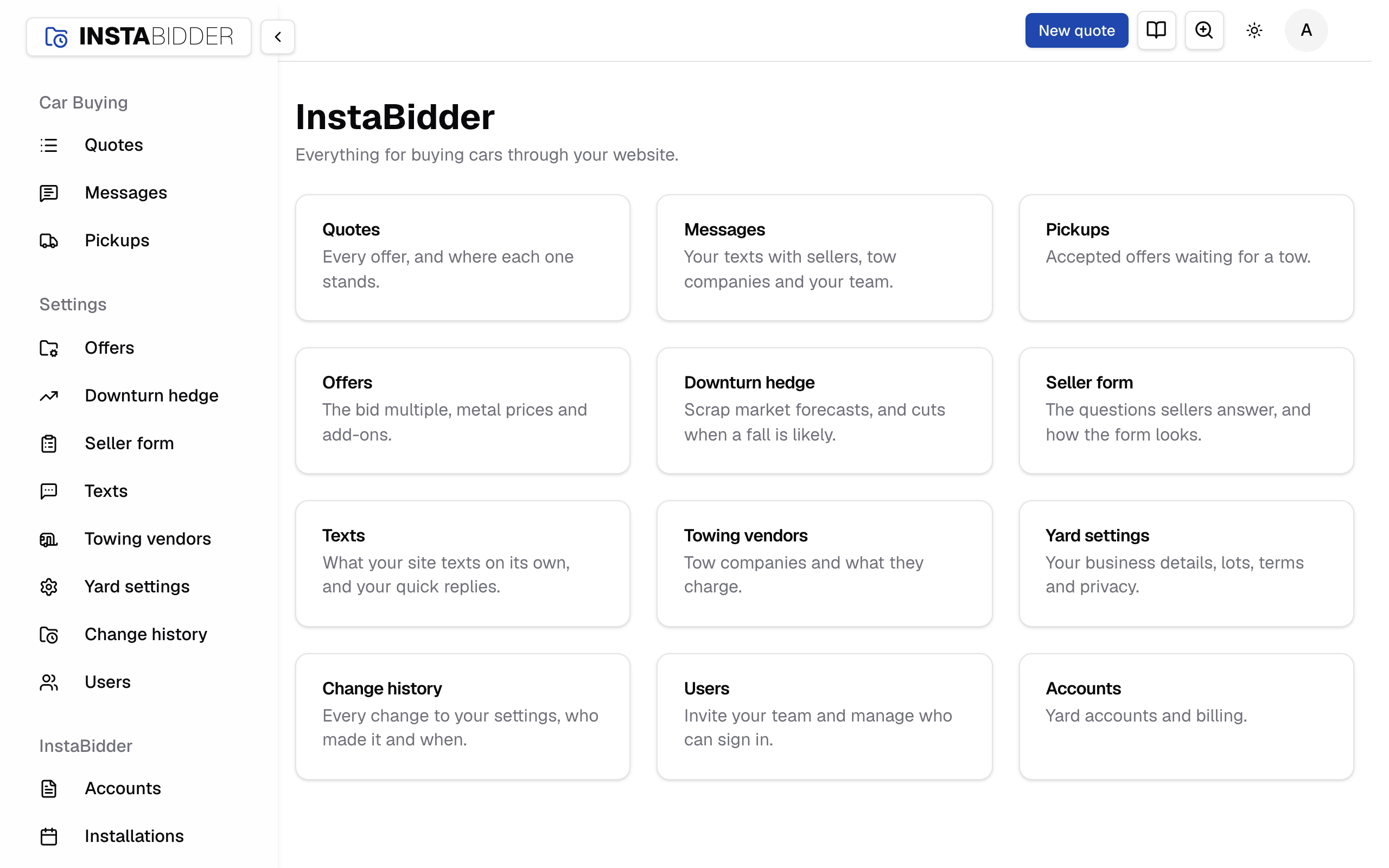
The home page has one tile for each place you work, in the order of the sidebar. Click a tile to open that screen.
| Tile | What it opens |
|---|---|
| Quotes | Every offer, and where each one stands |
| Messages | Your texts with sellers, tow companies and your team |
| Pickups | Accepted offers waiting for a tow |
| Offers | The bid multiple, metal prices and add-ons |
| Downturn hedge | Scrap market forecasts, and cuts when a fall is likely |
| Seller form | The questions sellers answer, and how the form looks |
| Texts | What your site texts on its own, and your quick replies |
| Towing vendors | Tow companies and what they charge |
| Yard settings | Your business details, lots, terms and privacy |
| Change history | Every change to your settings, who made it and when |
| Users | Invite your team and manage who can sign in |
| Setup | Your setup steps, and the line that puts the form on your website |
Messages holds every text thread, not only sellers': tow companies' and your team's too. See Messages.
Setup isn't finished
Shown to an Admin when a setup step was skipped. It names the steps left and links back to them.
Press Finish setup to pick up where you left off. The notice goes away once every step is done. Staff never see it.
Who sees what
Everyone who signs in works quotes, messages and pickups. Only an Admin sees the Users and Setup tiles and can change settings.
- Admin and Staff can both answer sellers, change an offer, book and move pickups and mark cars picked up. Every one of those actions is recorded in the person's name.
- Users and Setup are tiles only an Admin sees.
- Staff can open the settings screens (Offers, Towing vendors, Yard settings) to look, but not change them.
What a seller sees
A seller only ever sees the offer amount. The breakdown behind it is for your team, on the quote and on a phone quote.
Never read a seller the lines under How it was worked, and never send them. If a seller pushes back, change the offer instead: the quote keeps the online figure and your reason beside the new one.