Signing in
Sign in with your email and password, reset a forgotten password by text, and set a password from a texted link.
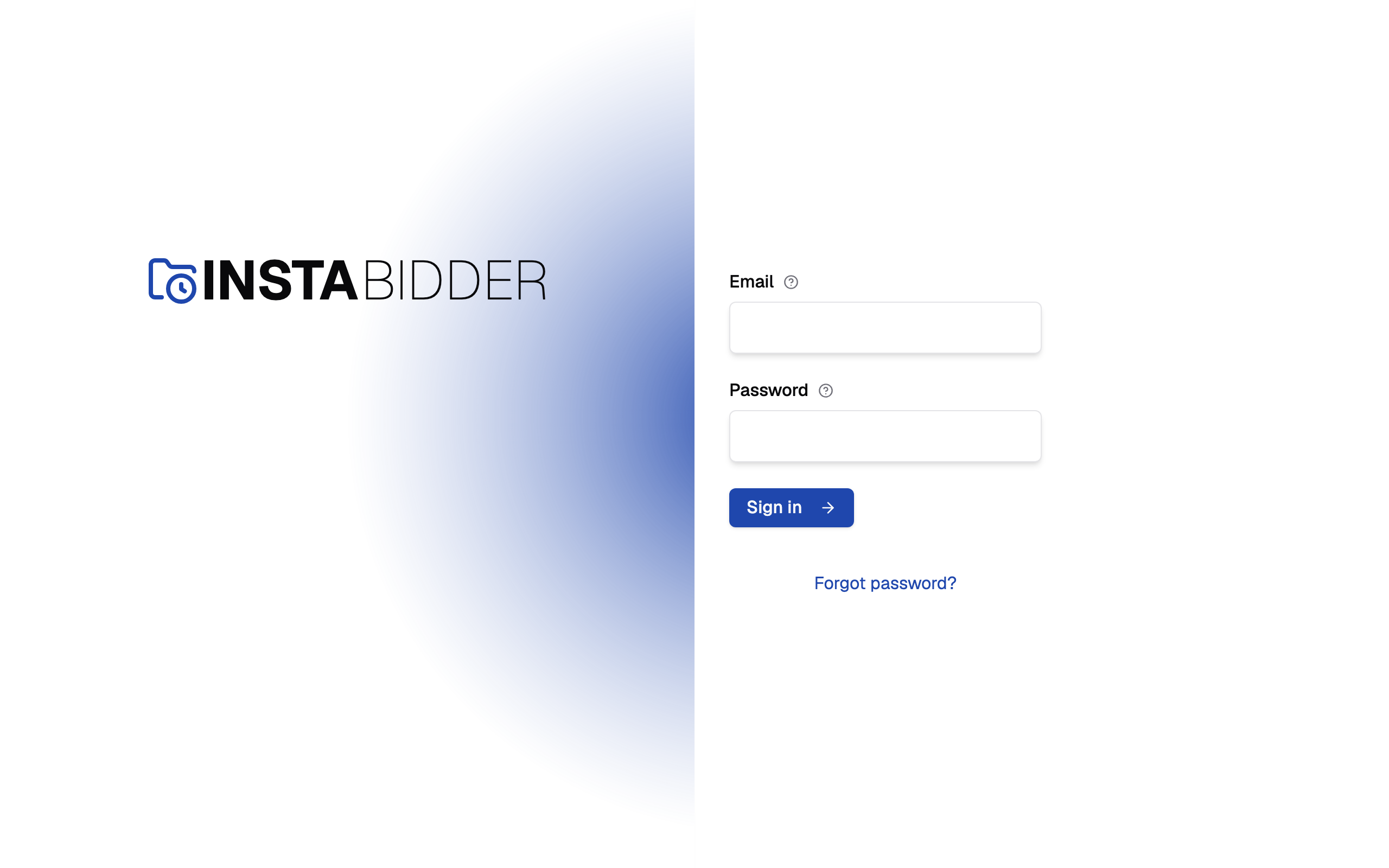
You sign in to your site with the email an Admin invited and the password you chose. There is no separate account to create: an Admin invites you by text, and the link in that text is where you choose your password.
Your sign-in works on your own site only. Each InstaBidder site keeps its own list of people, so an account on one doesn't sign you in to another.
The email address your site has on file for you. You sign in with it, and on the reset page it names the account a reset link is texted for.
Capital letters don't matter in an email. On the sign-in page, enter the email, enter your password and choose Sign in. If either is wrong, your site says "That email or password is wrong" and doesn't say which, so nobody can use it to find out who has an account.
You get the same message when the account is disabled, or when it was invited and hasn't set a password yet. Ask an Admin to enable you, or to resend your invite.
You sign in with the email an Admin typed when they invited you. You can see it on your profile, but you can't change it there.
Password
The password you chose for your site. If you're setting it from a texted link, use at least 12 characters.
Choose a password you don't use anywhere else. Your site stores a scrambled form of it, so nobody on your team or at InstaBidder can read it back to you. If you forget it, use Forgot password?.
To change your password while you're signed in, use your profile. You'll be asked for the password you have now.
Where signing in takes you
After you sign in, you land on your dashboard's home page. If you opened a dashboard address while signed out, for example a link to a quote, you're asked to sign in and then taken to that page.
Opening the sign-in page while you're already signed in takes you straight to your dashboard. Until setup is finished, an Admin is taken to the setup steps instead, and Staff to the waiting page.
Forgot password?
Choose Forgot password? under the sign-in button.
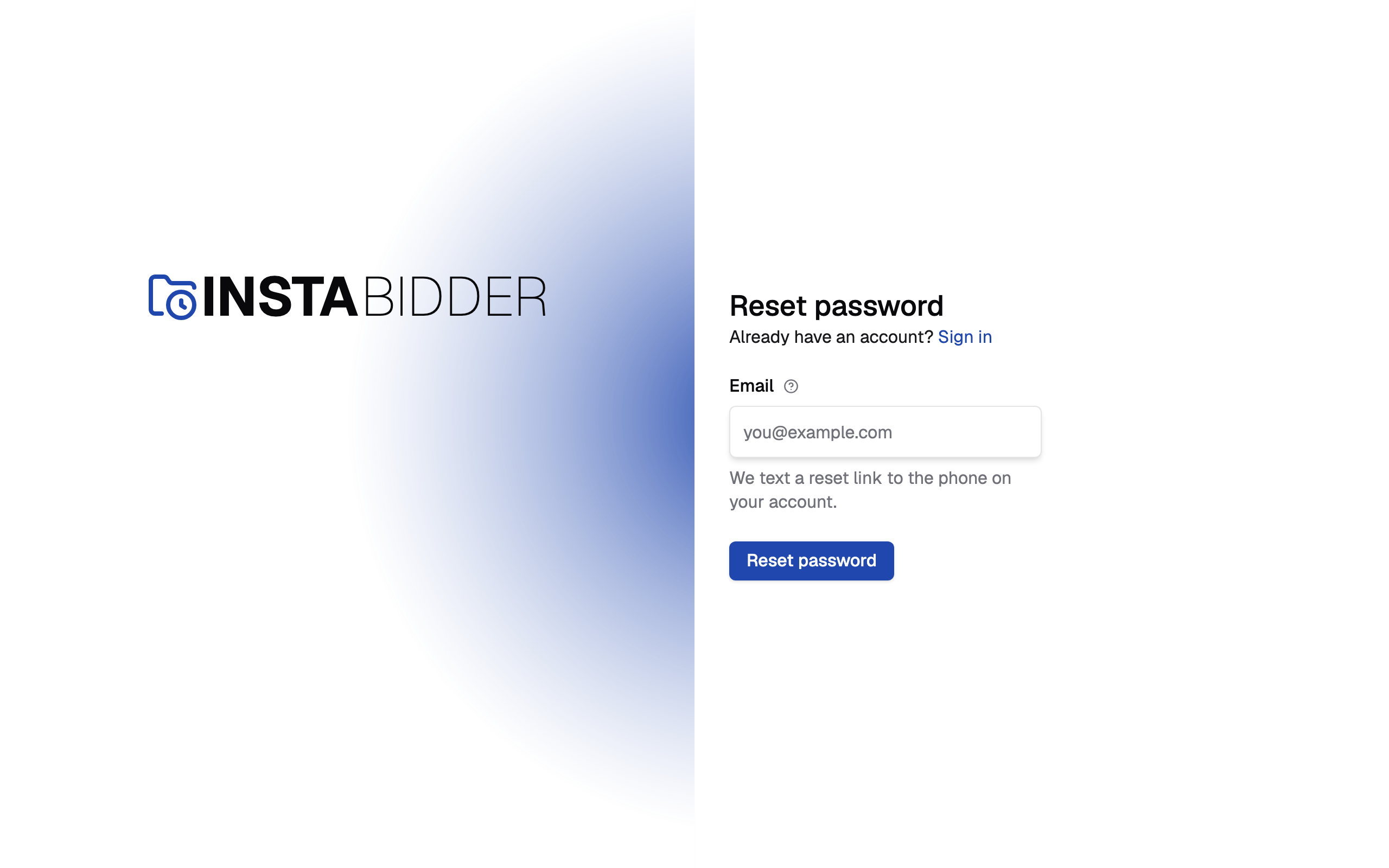
- Enter your email and choose Reset password.
- Your site texts a link to the mobile number on your account.
- Open the link on your phone and choose a new password.
Sign in at the top of the page takes you back if you remember your password. Choose Reset password with the box empty and the page says "Email is required".
Your site gives the same answer whether or not the email belongs to an account: "If that is the email on your account, a reset link is on its way to the phone on file." If no text arrives, check the email for a typo, and check that your account has a mobile number.
The text reads "InstaBidder password reset. If you didn't ask for this, ignore this text." and then the link. If you didn't ask for it, ignore it: nothing changes until someone uses the link.
A few things to know:
- The link goes only to the mobile number on your account. If you can't receive texts there, contact InstaBidder support.
- Your site sends one reset text per account every five minutes. If you ask again too soon, nothing new is sent. Use the link in the first text.
- Texting has to be turned on for your site. If it isn't, the page says "Texting isn't turned on for this site yet" in place of the email box, and you ask an Admin or InstaBidder to help. InstaBidder sets texting up for you, as part of setup.
- A disabled account, or one that hasn't set a password yet, gets no reset text. A person who hasn't set a password needs their invite resent instead; see Inviting people.
Setting a password from a link
Two kinds of text carry a link to your site: an invite from an Admin, and a password reset you asked for. Both open the same kind of page, which says "You sign in as" and the email you'll sign in with.
An invite page is titled "Set up your account" and its button reads Create account. A reset page is titled "Choose a new password" and its button reads Save password.
The invite text names the Admin who invited you, for example "Jo Rivera invited you to InstaBidder." On a phone, the link's preview reads "Set up your InstaBidder account" or "Reset your InstaBidder password". The preview never shows your name or email.
If the password is shorter than 12 characters, your site says "Use at least 12 characters." and clears both boxes.
Confirm password
Type the same password again, so a typing mistake can't lock you out.
If the two don't match, your site says "The passwords don't match" and clears both boxes so you can try again.
When you save, you're signed in at once and taken to your dashboard. If setup isn't finished yet, an Admin goes to the setup steps and Staff see the waiting page described in Setup.
Links work once, for 48 hours
Every invite and reset link works one time, and stops working 48 hours after it was sent. Opening the link to look at it doesn't use it up (phones open links to draw a preview); saving a password does.
A newer link of the same kind replaces the older one, so only the last text you were sent works. An Admin who disables you cancels your unused links too.
When a link no longer works, the page says "This link no longer works", because it was already used or is more than 48 hours old. For a reset, choose Send a new reset link. For an invite, the page says to ask an Admin to send it again, which they do with Resend invite on the Users page.
Too many tries
Your sign-in page, reset page and link pages take ten tries a minute between them from one connection. After that they refuse until the minute is up, with a page titled "Too many tries" that says "Wait a minute, then try again." Its Try again button takes you back to the page you were on.
Wait a minute and try again. It stops someone guessing passwords, and it never locks your account.
Staying signed in
Your site keeps you signed in on that browser until you sign out, or until about two weeks pass without you using it.
Some changes sign you out on every other device at once:
- You change your password, here or with a reset link.
- You change your mobile number.
The device where you made the change stays signed in. Anywhere else, you sign in again with your email and password.
When an Admin disables your account, you're signed out everywhere, and you can't sign in again until they enable you.
Signing out
Use Sign out at the bottom of the sidebar, or open your avatar and choose Sign out. Both do the same thing. During setup, Sign out is in the header of each setup page and of the waiting page.