Phone quotes
Take the seller form with a seller on the phone, from the keyboard, and text them the offer from the call.
When a seller calls instead of using your website, take the quote with them on the call. New quote is your seller form, worded for the person on the phone: the same questions in the same order, and the same offer the form would give.
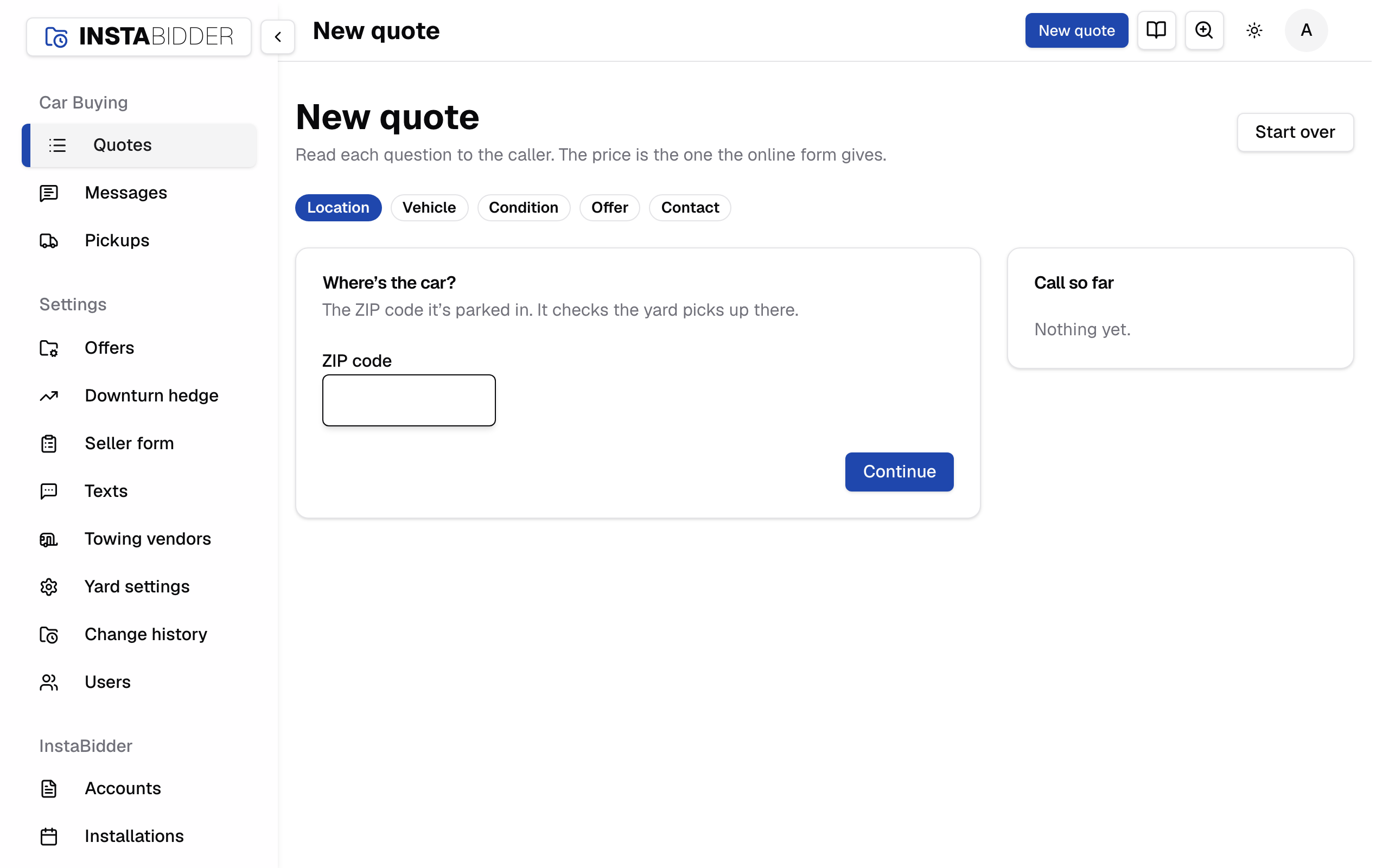
Open it from New quote at the top of the quote list.
New quote
Read each question to the caller and enter their answer. The offer at the end is the one your online form gives for the same car and answers.
The badges across the top show where the call is: Location, Vehicle, Condition, Offer, Contact. The order follows your Seller form, so if you ask for the number before the offer online, you ask for it before the offer here too.
Call so far
The card beside the form lists what the caller has told you: the ZIP and its distance by road, the vehicle, the VIN or plate, and each answer.
Use it to read back what you have before you give the price. Before the first answer it reads "Nothing yet."
Start over
Leaves this call and starts a new quote from the first question. The quote you left stays in the list with whatever was entered.
Keyboard
Every screen works without the mouse. The cursor starts in the first box, numbers pick answers, and Enter moves on.
- 1 to 9 picks that answer. On a question with one answer, it moves on. On Why are they passing it only picks the reason, so you can still add a note.
- Enter picks the highlighted answer and continues.
- Ctrl + Enter, or ⌘ + Enter on a Mac, continues from a text box, the note included.
- On a list of years, makes or models, start typing to narrow it, then ↓ into the list and Enter. ↑ from the top of the list goes back to the box.
- On a question where several answers apply, press each number, then Enter.
Tab, Space and Continue work too.
Where's the car
The ZIP the car is parked in. It checks you pick up there before any questions, as the online form does.
A ZIP past your service area ends the call there and opens the quote, marked Out of area, so the demand is on record.
How should we look it up
How you'll find the car: Year, make and model, License plate, or VIN. Press 1, 2 or 3. A VIN gives the most accurate offer.
- VIN: 17 characters, on the driver's door jamb or the dashboard. If the caller can't find it, press They can't find it to pick another way.
- License plate: the state comes from the ZIP.
- Year, make and model: pick each from the list, then the trim if there's a choice. Try a different way goes back to the choice of lookup.
Condition
Your seller form's questions, one at a time. Each shows its help text, and each answer its own, so you can read them out.
Offer
The offer, and when it's good until. Read the caller the price and ask if they'll take it. Press 1 if they accept, 2 if they decline.
The lines under the price are how it was worked. They're for you: never read them out. A caller who pushes back can be offered a different figure from the quote's page once the call is saved; see Change the offer.
- They accept (1) records the yes in your name and moves on to the name and number if you don't have them yet.
- They decline (2) asks why.
Not ready to decide
Texts the caller the offer so they can think it over. The quote stays open with the offer out. Press 3 to jump to the name box.
Enter their First name and Phone number, then press Text the offer. Shown only when texting is turned on for your site.
Why are they passing
Why the caller said no: the offer is too low, just exploring, selling to someone else, or other. Press a reason's number to pick it, then Enter to save.
To keep what they said as well, press Tab to Anything else they said after picking the reason, type it, then press Save or Ctrl + Enter. It goes on the quote with the reason, the same as Seller said no on a quote.
Seller's name and number
The caller's first name and mobile number. The offer is texted to this number when you finish, so they have it in writing.
Press Finish and text the offer. When texting isn't turned on for your site, the button reads Finish: tell them the offer on the call.
A caller who gives you a number to be texted has agreed to texts, so there's no consent wording to read.
After the call
When the call is done, your site opens the quote's page, with a note at the top saying whether the offer was texted.
You land there when the caller accepts, declines, is out of area, or has the offer by text. From there, book the pickup as for any quote: see Working a quote.
- The quote reads Phone where it came in, and the timeline starts with "Quote started on a call by" and your name.
- When your own offer or accepted text is on in Texts, that is the text the caller gets, so it isn't sent twice. Set for later, it doesn't go again when its time comes.
- Texts to your team are skipped on a phone quote: you were on the call. Texts to the seller and, once a pickup is booked, to the tow company go as they do for any quote.
This call can't continue
The call expired, or was finished in another tab. Press Start a new quote to begin again.
This call is finished
Shown when a finished call doesn't open its quote on its own. Press Back to quotes and find it at the top of the list.