Messages
Every text thread your site has, one per number, with the quote beside it and replies arriving as they come in.
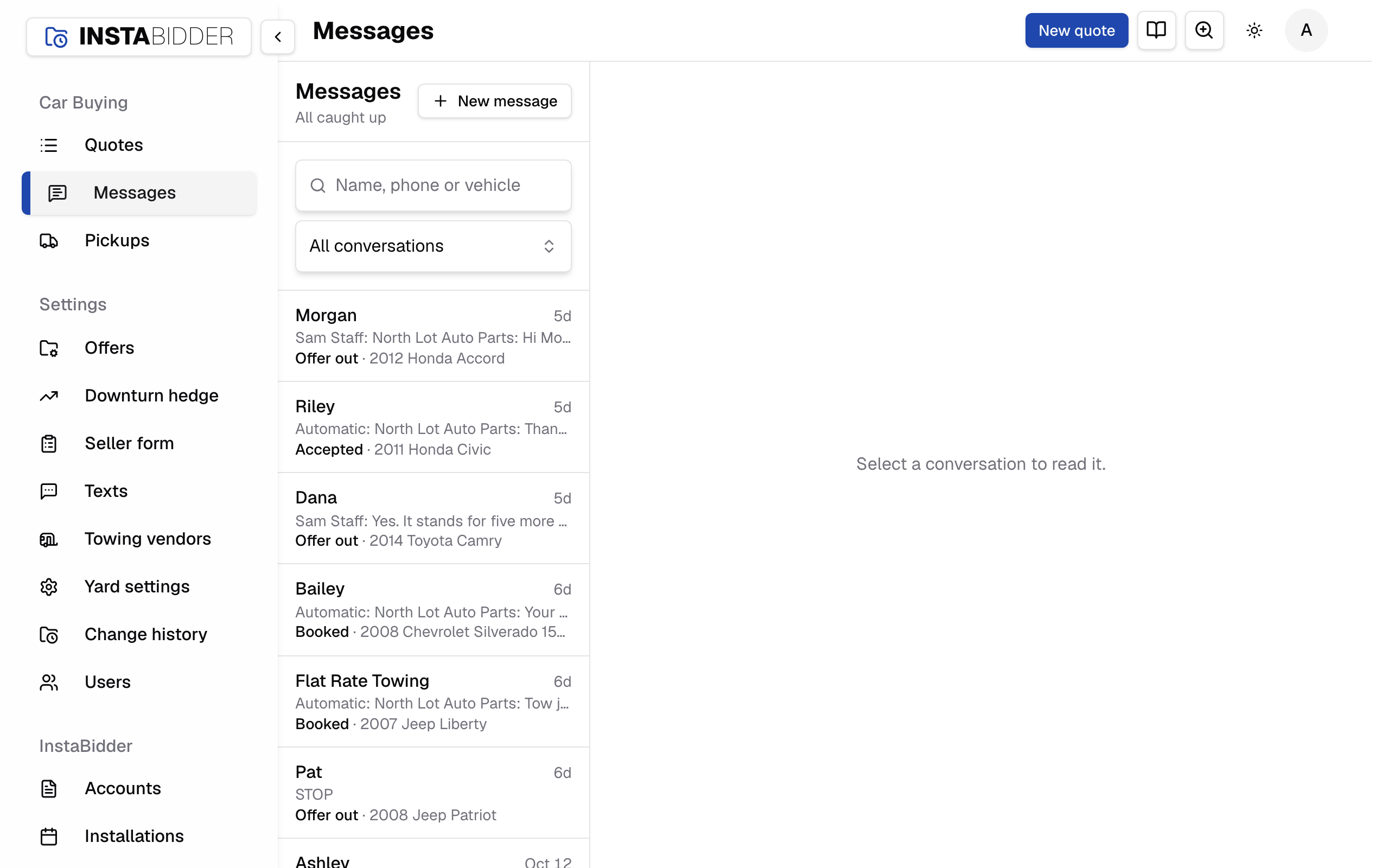
Messages is your site's text inbox. Every number your site has texted or heard from has one thread: sellers, tow companies, and the team members who get your site's texts. Open a thread to read it and reply, with the quote it belongs to beside it.
The same texts show on each quote's Texts and Tow texts tabs; see Working a quote. Messages is the place to work them all at once.
Conversations
One row per number, the newest text first. Each row shows who it is, the last text, and the quote's status and car.
- Who: the seller's first name, the tow company's name, or a team member's name, worked out from the number: a tow company's by the phone on its towing vendor, a team member's by theirs, else the seller's on the quote. A number that is none of these shows as the number.
- The last text, with who sent it when it was your side ("Automatic:" or a colleague's name) and how long ago.
- The quote, when the number belongs to one: its status in bold and the car, or the quote number. A tow company's row shows its next booked pickup, the same quote its details and quick replies use.
- Unread: a count beside the time of the texts that came in since anyone on your team last opened the thread.
On a phone the list fills the screen and a thread opens over it, with an arrow back. On a wider screen, with no thread open, the space beside the list reads "Select a conversation to read it."
With no texts yet, the list reads "No conversations yet. Texts with sellers, tow companies and your team show up here." Under the Messages title is how many threads have unread texts, such as "2 unread", or "All caught up".
A text that comes in is unread until someone signed in opens its thread, here or on the quote's Texts or Tow texts tab. An open thread marks each new text read as it arrives, and every open Messages page updates its count.
Search conversations
Finds a thread by name, phone number, car or the words in its last text. Three or more digits match part of a phone number.
Filter conversations
Narrows the list to All conversations, Unread (threads with texts nobody has opened), or Accepted offers: threads whose quote is accepted, booked or not.
When nothing matches, the list says so, with Show all conversations under it.
New message
Starts a thread with a number that isn't in the list yet. Type the number under Text a new number and press Start texting.
The thread opens empty with the box ready, reading "No texts with this number yet". When the number already has a thread, that thread opens. Something that isn't a phone number is refused: "That is not a phone number." It's hidden while texting isn't turned on for your site.
To start a thread with a tow company, type the number on its towing vendor: the thread reads under the company's name.
The thread
The texts with one number, oldest at the top and newest at the bottom, each day marked. Their texts are on the left, yours on the right.
- Texts your site sent on its own are marked Automatic; a colleague's carry their name.
- Under each text you sent: Sending, Sent, Delivered or Not delivered. One that didn't arrive is outlined in red.
- Call in the header dials the number.
- The header shows the name, the quote's status, and the number and car under it, or "No quote linked".
- Opening a thread marks its texts read.
Reply
Type in the box and press Send. The text goes from your site's number, under your name. The count under the box is how long the text is.
The box reads "Text" and the person's first name, or "this number". Send stays off until you've typed something, and the thread reads "Sent." once it's gone. A text you type goes as you wrote it, without your legal name in front.
A reply in a seller's thread shows on their quote's Texts tab and in its timeline too.
Quick replies
Your team's saved texts, filled in for the quote behind the thread. Pick one to put it in the box, then edit and send.
A seller's thread gets your seller replies, with their name, offer and pickup time filled in. A tow company's thread gets your tow company replies, filled in for its next pickup. A team member's thread has none. One that names a detail the quote doesn't have yet is left out of the menu, and with none left the Quick replies button isn't shown. Quick replies are written in Texts › Quick replies.
Tow company threads
A tow company's thread reads under the company's name and holds every text with its number, about every pickup it has had with you, automatic or typed.
A tow company's number gets a thread from the first text your site sends it: the pickup-booked text, if it's on, or one your team sends from a quote's Tow texts tab.
- Its replies land here and on the quote of its next booked pickup: the one not yet picked up that is under way or booked soonest from now, else its most recent pickup. A reply is never taken for the seller texting in.
- Your reply from this thread is filed with that same next pickup. To text about a particular car, use the Tow texts tab on that car's quote instead.
- Quick replies offers your tow company replies, filled in for that same pickup.
- The details are headed Tow company with the company's name, and show that pickup's quote.
- STOP works the same as for a seller: nothing more goes to the number until it replies START.
The name comes from the company's towing vendor; two companies with one number share one thread. When a company's number changes, texts with the old number stay in that number's thread, shown as the number. See Tow company texts.
Details
The quote behind the thread: the offer and status, the day it was quoted, the seller, the pickup and the car. Open quote takes you to it.
On a wide screen the details sit beside the thread; Hide details folds them away. On a narrower one, Details opens them over the thread.
The details read Quote # and its number, the Offer and status, the day it was Quoted, who the number is (Seller, Tow company, Team member, or Contact for a number that is none of these) with the name and phone, then Pickup (the address, or "No pickup address yet" with the ZIP; the Tow company, the Tow cost and the Arrival window, or "Not chosen yet" and "Not booked yet") and Vehicle (the car, trim, VIN, fuel and curb weight, or "No vehicle on this quote yet").
A number that doesn't match a quote reads No quote linked. Once it does, for example when the seller fills in the form with that number, the details fill in.
Live updates
New texts, replies and delivery updates appear as they happen, in the list and in the open thread, without reloading the page.
The same is true of a quote's Texts tab. A STOP shows as soon as it arrives.
Texting isn't turned on for your site yet
Shown until your site's texting number is set up. You can read Messages, but nothing can be sent from your site until then: call sellers instead.
While it shows, New message, the box in a thread, a quote's Text button and boxes, and Text the offer on a phone quote are hidden. A thread reads "Texting isn't turned on for your site yet, so you can't reply here. Call them instead." InstaBidder sets texting up for you, so there's nothing you need to do.
This number sent STOP
Shown on a thread whose number replied STOP. Nothing further goes out to it: not your texts, not the automatic ones.
The box is gone from the thread and from the quote's Texts tab, and the quote's Seller card reads Replied STOP. The STOP and its time are in the quote's timeline.
A text that is only one of STOP, STOPALL, UNSUBSCRIBE, CANCEL, END, QUIT, REVOKE or OPTOUT counts as a STOP. Your site doesn't text that number again until it replies START, so call the seller instead. See Texts for how agreement to texts works.
When the number replies START, UNSTOP or YES, the notice goes, the box comes back, and texts go to it again. The quote's timeline keeps the STOP and adds Opted back in with its time. See START.
When a text doesn't send
The thread shows a notice saying why, worded for you, and the text is marked Not delivered when the carrier turned it away.
Try again, or call. The notices you can see:
- "The text didn't go out. Try again in a minute." when your site couldn't reach the texting service.
- "That number can't get texts. Check it, or call them instead." for a landline or a number that doesn't exist.
- "This number opted out. Nothing was sent." after a STOP.
- "This number opted out by text. They can text START to opt back in." when the carrier still holds the number as opted out.
- "The text didn't go out. Check the number and try again, or call them." for any other refusal.
- "Write a message." when the box was empty.