Seller form
What a seller sees on your form, screen by screen, from the car's location to the offer and their phone number.
- Steps The order your form asks things in, how many sellers reach and leave each step, and where it asks for the phone.
- Questions The questions your form asks, the answers sellers pick from, and what each answer adds to or takes off the offer.
- Look The seller form's button color, corners and font, so it looks like part of your website.
- Where it appears The website your form is allowed to appear on, and the line to paste there to put it on your pages.
- Results How far sellers get on your form, by where it asks for the phone and by each order of steps they were given.
- History The latest changes to your seller form, who made each one and when.
The seller form is how a seller gets an offer for their car from you. It asks one thing per screen, gives one number at the end, and takes a name and phone so your team can arrange the pickup. Most sellers finish it in about a minute.
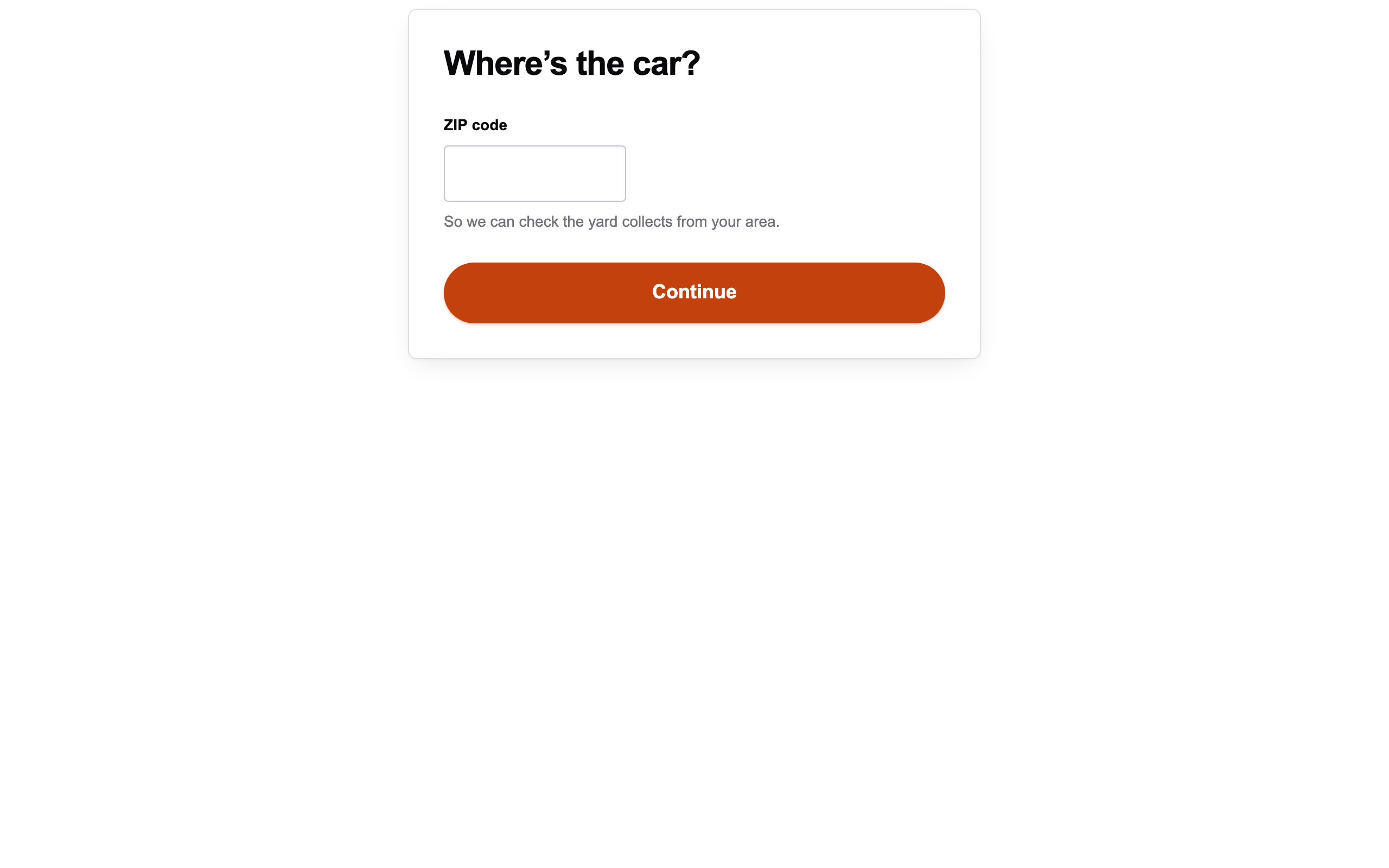
Every screen has one question and a Continue button. When something is missing or wrong, the screen says "Please check the answers marked below." and marks the box with what to fix.
Where the form appears
The form shows inside a frame on your own website, in your colors. Sellers never leave your website to use it.
You set the website and get the line to paste on Where it appears. The colors, corners and font are on Look.
Your team uses the same form at /admin/quotes/new when a seller calls in, so a
phone quote gets the same questions and the same offer.
Phone quotes explains how that works.
Where's the car?
The seller enters the ZIP code where the car is. Every quote starts here, so it is always the first screen.
Under the box, the form says "So we can check the yard collects from your area." A yard in Canada asks for a postal code instead, and the form takes either kind. An empty box asks for the ZIP code where the car is, and a ZIP code that isn't five digits is refused: "A ZIP code is five digits." (For a postal code: "A postal code looks like T2E 1L4.")
We don't pick up there yet
A ZIP outside the area you pick up from ends the form here, with your phone number, so the seller can still call you.
The seller reads that the ZIP code is farther than your trucks go, and to call you if the car can get to you or they think you have it wrong. Try a different ZIP code starts the form again.
That quote is kept, so you can see the demand from places you don't serve. Only a yard that offers only within a radius sends sellers here; see Instant offers.
How should we look it up?
The seller picks how to tell you which car it is: year, make and model, license plate, or VIN. VIN is marked "The most accurate offer." Year, make and model is picked to start with.
The vehicle
The seller identifies the car the way they picked. Each way has a button back to this choice, because the form has no back button: I can't find the VIN on the VIN screen, and Try a different way on the others.
- Year, make and model: four short lists, one per screen: "What year is it?", "What make is it?", "Which model is it?" and "Which trim is it?". Each list only shows what fits the pick before it. The trim list has a "Not sure" choice, and a model with only one trim skips that screen.
- License plate: the plate number, up to 8 characters. The state comes from the ZIP, so the seller doesn't enter it.
- VIN: the 17 characters from the driver's door jamb or the dashboard. A VIN is never accepted with an I, O or Q in it: "A VIN is 17 characters and never contains I, O or Q."
A VIN that could be one of several trims is taken as it is: the seller isn't asked to pick a trim, and your team sees the trims it could be on the quote.
When a look-up doesn't work, the seller is told why and can try a different way:
- A plate or VIN that isn't found: "We couldn't find that plate. Check it, or try a different way." (or "that VIN").
- A car that's found but can't be weighed: the form names the car it found and says it can't price it from that, so the seller picks it from the lists. No offer is ever made without a weight.
- A ZIP code the form can't tell the state from, on the plate screen: it asks the seller to try a different way.
- A seller who looks a car up by plate or VIN many times in one day: "We can't look up any more for this car. Pick it from the list instead."
- Plate and VIN look-ups down for a moment: "Lookup is down. Try a different way and we'll take it from there."
- Lists that changed while the seller was on them: "The list just changed. Pick again."
Your questions
Your own questions come next, one per screen, with your help text under the question when it has one. A follow-up comes right after the answer that brings it up.
You set the order on Steps. Every question has to be answered before the seller moves on. You write the questions, the answers and what each answer is worth on Questions. A yard with no questions goes straight from the vehicle to the offer.
- A question with no answer picked says "Pick one to carry on.", or "Pick at least one." where sellers can pick several.
- Ticking an exclusive answer, such as "None of these", clears the other boxes. If both still reach your site, the form asks the seller to uncheck one or the other.
- A question you remove while a seller is on it is passed over; they go on to the next one.
The offer
The seller sees one number: "We'll pay $X for it." They never see how it was worked out, only the amount.
Your team sees the full breakdown on the quote. A seller never does, on the form or anywhere else.
If your team revises the offer before the seller decides, the seller sees the revised amount the next time they reach the offer, and never the one before it.
Good for seven days
Every offer is good for seven days, and the screen shows the date it ends in your time zone, such as "Good until November 3." The amount is fixed the first time the seller reaches the offer.
The seller reads "Scrap prices move, so we can't hold it longer than seven days." under the amount. A price change you make after that doesn't change an offer already shown.
Accept or no thanks
The seller taps Accept offer or No thanks.
When you ask for the phone with "Text me this offer", there's a third button, Text me this offer, for a seller who hasn't given a number. It asks "Where should we text it?", takes their name and phone with Text it to me, and brings them back to the offer, where they can still accept or say no thanks. The offer is texted to them as they give the number, whether or not your automatic texts are on. When your Offer shown, no answer yet offer text is on, that is the text they get, and they get it once.
A seller who says no thanks is asked "What put you off?": "Offer is too low", "Just exploring", "Selling to someone else" or "Other", with "Anything else?", an optional note of up to 500 characters, and Send. A reason has to be picked. That reason and note are on the quote for your team.
Name and phone
The seller gives a first name and a mobile number, with a line saying why you need it and that you don't sell their information. No email or address is asked.
Under the phone is the sentence that agrees to texts from your legal business name about this offer. Entering the number is that agreement, and it's recorded on the quote.
By default the form asks for the phone after the seller accepts. You can ask before the offer instead; see Phone. The screen changes with why it's asking:
| When it's asked | The question | The line under the phone | The button |
|---|---|---|---|
| After accepting | Where should we reach you? | So the yard can confirm pickup. | Finish |
| Before the offer | Where should we send your offer? | Your offer is next, and we'll text you a copy. | Show my offer |
| Text me this offer | Where should we text it? | We'll text you this offer so you have it. | Text it to me |
Each line ends "We don't sell your information." With the skip, the screen before the offer also has Skip, show my offer.
Both lines that promise a text keep it: a seller who gives the number before the offer is texted the offer as it's first shown, and one who taps Text me this offer is texted it straight away. No text goes to a number that replied STOP, or to a number from 555-0100 to 555-0199.
The form asks the seller for a name ("Tell us what to call you.") and a phone it can text: "That doesn't look like a 10-digit US number." Spaces, dashes and brackets in the number are fine.
You're all set
The last screen tells the seller your yard will call to arrange pickup, with your phone number for questions before then. A seller who gave their phone before the offer comes straight here when they accept.
Once a seller accepts or declines, their answers can't change.
Thanks for telling us
A seller who declined and sent a reason sees "Thanks for telling us." and "If you change your mind, call" your legal business name and phone number. The form ends there.
When the form starts over
A form left for more than 30 days, or an offer past its seven days, shows "This form has expired." with Start again and your phone number, so the seller can call instead.
A seller sitting on the offer screen past its seven days sees this when they next tap a button. Starting again gives a new offer at your prices that day.
Going back and tapping twice
The form keeps the seller's place on your site, not in their browser. A seller who taps a button twice, or uses the browser's back button, lands on the screen they're actually on, and nothing is answered twice.
What sellers are never asked
The form never asks for mileage, mirrors, glass, lights, color, email, street address, owner names or liens. None of them moves a scrap offer, or they come after the seller accepts.
The car's weight, fuel, aluminum wheels and whether it's a truck aren't asked either. They come from our vehicle list, because sellers can't tell and a wrong answer becomes an argument at pickup.