Business info
About you and your business: your name and mobile, your legal business name, phone, website, office address and time zone.
Business info is the first setup step. It tells your site who you are, how sellers reach your business and where it is. Carriers and sellers see some of it, so enter it the way your paperwork reads.
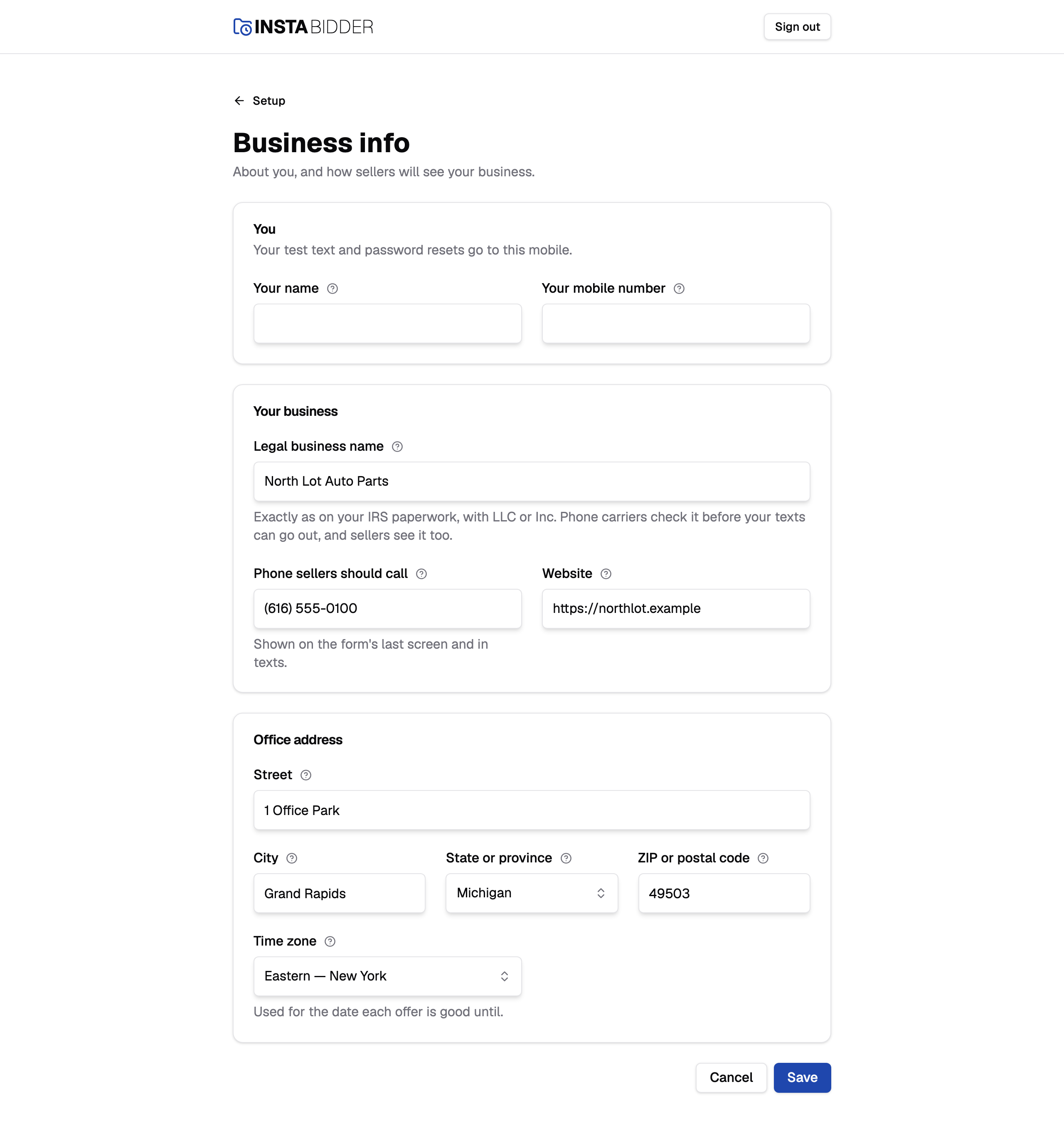
Fill in every field and choose Save. Your site returns you to the setup steps, and Change history records that business info was saved. Cancel takes you back to the steps without saving. You can reopen Business info from Setup in the sidebar whenever something changes.
A field that's missing or wrong is marked in red with what to fix, and nothing is saved until every field passes.
You
The first card is about you, the person setting up the site. Your test text and your password reset links go to the mobile number here.
When InstaBidder's team fills in Business info for you, the card is titled "The yard's Admin" instead, and its fields read Their name, Their email and Their mobile number. Saving it adds that person to your site as an Admin and texts them a link to choose a password. See Adding the yard's Admin.
Your name
Your name, as it shows in Change history and in the invite texts you send. Up to 120 characters.
Your teammates see it beside the changes you make, and in the list of people on your site. Leave it empty and your site says "Enter your name, up to 120 characters."
Your mobile number
Your test text and password reset links go to this mobile. Enter a US or Canadian mobile number.
Your site needs a mobile number for you before you can invite anyone, because reset links are texted to it. Enter one with its area code, for example (602) 555-0134. Brackets, spaces and dashes don't matter, and a leading 1 is fine. Anything that isn't ten digits gets "Enter a US or Canadian mobile number."
Once it's saved, the box becomes read-only and says "Change it on your profile". That's because changing the number needs your current password. Your profile has the field. Saving your first number here keeps you signed in.
Their email
The email the yard's first Admin signs in with. It appears only when InstaBidder's team fills in Business info on your behalf.
It's the address on the invite, so it must be one the Admin reads. It can't be one that's already on your site's list of people; your site says "Someone with that email is already on the list."
Adding the yard's Admin
When InstaBidder's team saves this card, the person in it is added as an Admin and texted an invite. The text reads "Your team invited you to InstaBidder", with a link that works once, for 48 hours.
- If the text fails, the reason shows in red at the top of the page, ending "Save again to resend it." The person is saved anyway. Choose Save again, with or without changes, and the invite is texted again.
- Until they've chosen a password, the card can be corrected: change the name, email or mobile and save again. A new mobile number gets a new text, and the link sent to the old one stops working. Once a text has gone out, saving with the same number doesn't text again; to send a fresh link, use Resend invite on the Team step.
- Once they've set a password, the card is read-only and says "They've set their password, so only they can change these, on their profile." They change their own details on their profile.
Your business
How sellers see your business, and the details phone carriers check.
Legal business name
Exactly as on your IRS paperwork, with LLC or Inc. Phone carriers check it before your texts can go out, and sellers see it too.
Carriers match this name against your tax records, so a short or friendly version can delay your texting being approved. Up to 120 characters.
If it's empty or too long, your site says "Enter the legal business name, as on your IRS paperwork, up to 120 characters."
Phone sellers should call
The number sellers call. It's shown on the form's last screen and in your texts.
Use a number that someone answers during your business hours. Type it the way you want sellers to read it, up to 40 characters, for example (602) 555-0100.
Website
Your business's web address, like northlot.com. Your site reads it for colors, and the seller form works only on pages of this website.
You can type it without "https://". Your site fills that in. It needs a dot, like northlot.com, and can be up to 300 characters; otherwise your site says "Enter the web address, like acme.com."
The Website and brand step reads this address to suggest your form's colors, and Seller form on your site uses it to say where the line to paste works.
Office address
Where your business is. This is your office, not where your trucks leave from; those are your locations.
The address fields work the same way as they do for your locations; Service area describes them. The ZIP or postal code must match the state or province you pick: a five-digit ZIP for a US state, a postal code like T2E 1L4 for a Canadian province.
Until setup is finished, your country follows this address: pick a Canadian province and your site reads in kilometres and postal codes. After that, you change your country in Yard settings and this address no longer moves it.
Time zone
The time zone your business works in. It sets the date each offer is good until.
Pick the zone of your office. Dates and times your site shows, for example when your test text arrived, follow it.
The list has seven US zones and seven Canadian ones, each named for a city, such as "Central — Chicago". Arizona and Saskatchewan have their own entries, because they don't change their clocks. If none is picked, your site says "Pick a time zone."
Changing it later
Business info stays open to Admins after setup, from Setup in the sidebar. Some of the same details are on Yard settings too.
How the two pages share them, with Business on Yard settings:
- Legal business name, phone and time zone are on both. A save on either changes the same details.
- Your country is on Yard settings only.
- Your website and office address are here only. Yard settings' Business info button brings you back to this page for them.