Seller form on your site
Paste one line on your website to put the seller form there, whatever you built the site with.
The last setup step puts your seller form in front of sellers. You paste one line on the page of your website where the form should appear, and the form shows up there, in your colors.
This step only explains. It never holds back Finish setup, and your site doesn't check whether you've pasted the line. On the setup steps it's marked with a page icon instead of a tick, and its button reads Open.
If you haven't entered your website, the page says "Add your website on Business info first. The form only works on that site." with a link to Business info.
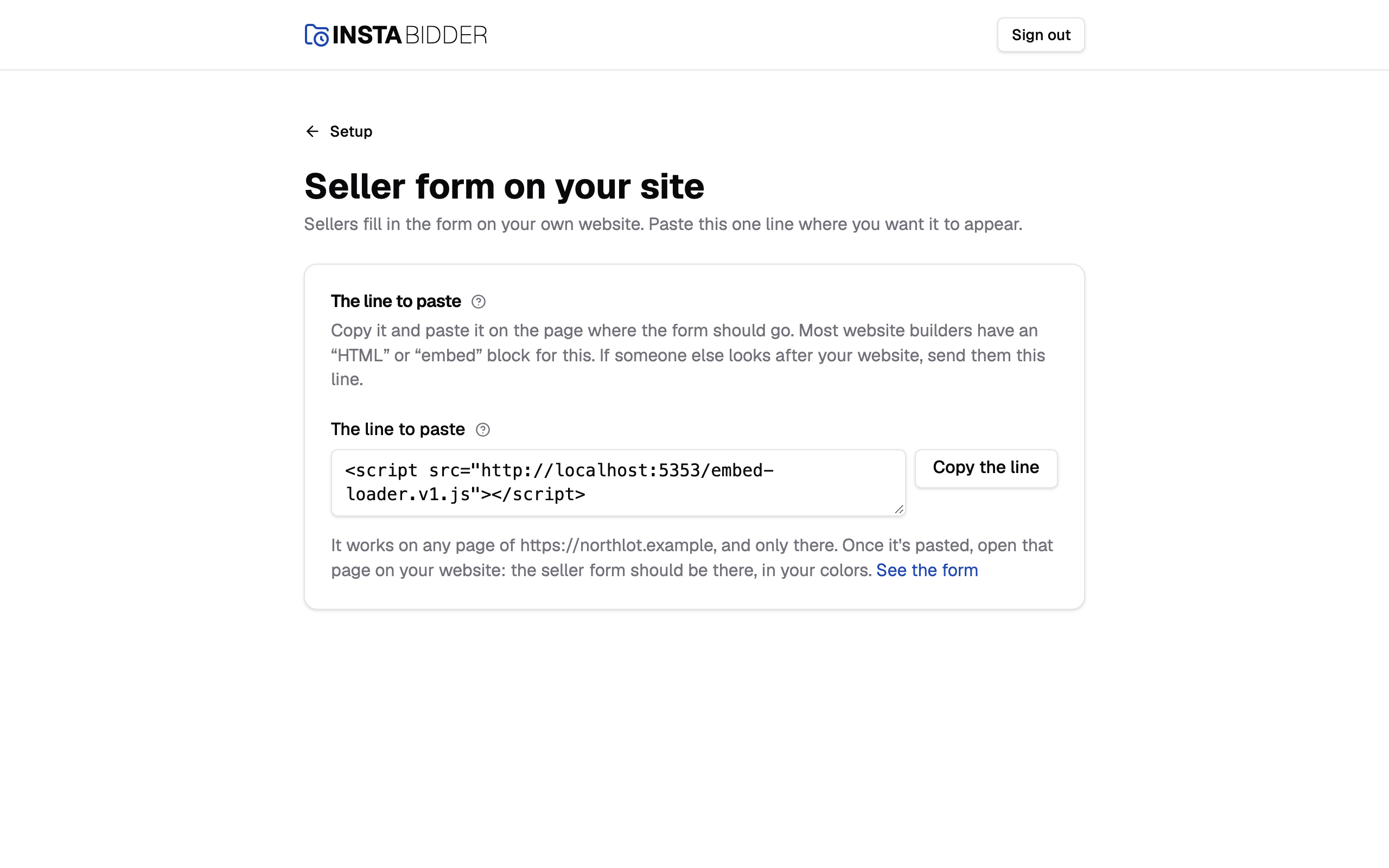
The line to paste
One line of code that draws the form where you paste it. Copy it and paste it on the page where the form should go.
Choose Copy the line, then add it to your page:
- Open the page on your website where sellers should get their offer.
- Add an "HTML" or "embed" block. Most website builders have one, whatever they call it.
- Paste the line into the block and save the page.
- Open that page on your website. The seller form should be there, in your colors.
If someone else looks after your website, send them the line.
The line works on any page of your website, and only there. The page names your website, so you can check it's the right one. It works with or without "www", and whether your website's address starts with https or http. On any other website, the form refuses to load.
Use See the form to open the form on its own, in a new tab, and check how it looks.
If the page says your site "isn't fully set up yet, so there's no line to paste", contact InstaBidder support. Your site's address isn't set yet, and InstaBidder sets it.
Where it appears has the same line on the Seller form page, so you can copy it again later, and lists the addresses the form is allowed to appear on.