Enthusiast add-ons
Extra dollars you add to the offer for vehicles a collector or rebuilder pays more for.
Some cars are worth more than their metal: a Mustang GT, a Jeep Wrangler, a truck people rebuild. An enthusiast add-on adds dollars to the offer for one model over a run of years, on every trim or only the trims you pick.
Enthusiast add-ons
Dollars you add to the offer for particular vehicles. A car gets at most one add-on, the most specific that covers it, before the bid multiple.
The card on Offers lists every add-on, sorted by make, model and years:
| Column | What it shows |
|---|---|
| Vehicle | The make and model |
| Years | One year, a run such as 2015–2020, or "2018 and newer" |
| Trims | Every trim, or each trim named |
| Add | The dollars it adds, such as +$500.00 |
Each row has an edit button and, in its menu, Remove. Add vehicles opens the vehicle list to add more. With no add-ons yet, the card reads "No enthusiast add-ons yet" with Add vehicles beside it.
Staff see the list but no Add vehicles, edit or Remove.
How a car gets an add-on
- One add-on per car, never more. When several cover a car, the most specific wins: one naming the car's trim beats an every-trim one, then the one with fewer years, then the larger amount.
- A trim-only add-on needs a known trim. The trim is known when the seller picks one, or a VIN gives exactly one. A seller who picks "Not sure", or whose VIN could be one of several trims, gets only every-trim add-ons.
- When a trim-only add-on would have paid more, the quote shows If they know the trim with what the offer would be under it. For a VIN that could be several trims, it lists only add-ons for trims that VIN could be. If the seller calls the offer too low, ask which trim they have; see If they know the trim.
- The add-on joins the scrap value before the bid multiple, so at 80% a $500 add-on raises the offer by $400. In the quote's breakdown it's the first line after the metals and the diesel truck add, named for the add-on, such as "Enthusiast add-on, 2015–2020 Ford Mustang GT".
- Make and model match however they're written: "F150" is "F-150".
For example, with $300 on every 2015–2020 Ford Mustang and $1,200 on the 2015–2020 Mustang GT350 trim, a seller who picks the GT350 gets $1,200, and one who picks "Not sure" gets $300. The two never add up.
A seller never sees the add-on, only the offer.
Editing and removing
- Edit opens the add-on at its years, trims and amount, under the title Edit enthusiast add-on. Save goes back to Offers and says "Saved."; Cancel goes back without saving.
- Remove asks first: "Remove this add-on?", naming it, with "New offers stop adding it. Offers already made keep it." Press Remove to confirm. Offers then says "Removed the add-on for" and the add-on.
Editing or removing an add-on never changes an offer already made: each offer keeps the add-on it was made with.
If someone removed the add-on while you had it open, your save is refused: "This add-on was archived while you had it open, so nothing was saved. Add the vehicle again to make a new one." Removing one that's already gone says "That add-on was already removed."
Vehicles
Every year, make, model and trim in our vehicle list. Pick the vehicles the add-on is for, then go on to set the amount.
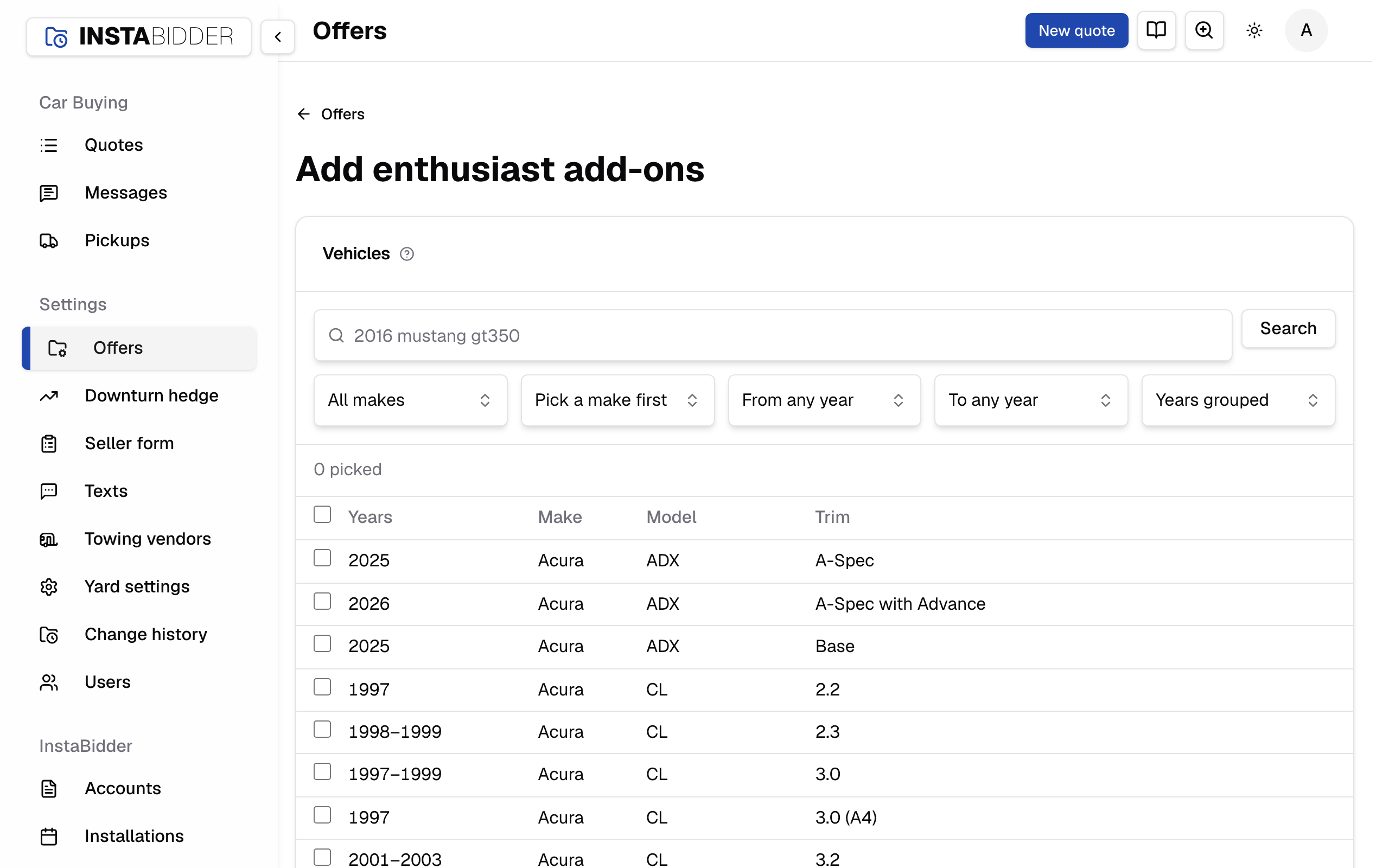
Add vehicles opens this page, Add enthusiast add-ons. Offers at the top, or Cancel, goes back without adding anything.
To find vehicles:
- Search by words or a year: words match the make, model or trim, and four digits match a year, as in "2016 mustang gt350". Every word has to match. Press Search or Enter.
- Make (from All makes), then Model, narrow the list. Model reads "Pick a make first" until you choose a make.
- From and To a year narrow it by year.
- Years grouped shows each trim's run of years on one row; Each year shows a row per year.
Choosing a make, model, year or view reloads the list at once. The list shows 50 vehicles a page, with the count, such as "1–50 of 1,240 vehicles", and Previous and Next at the foot. A trim our vehicle list gives no name reads "No trim listed"; it picks and matches like any other.
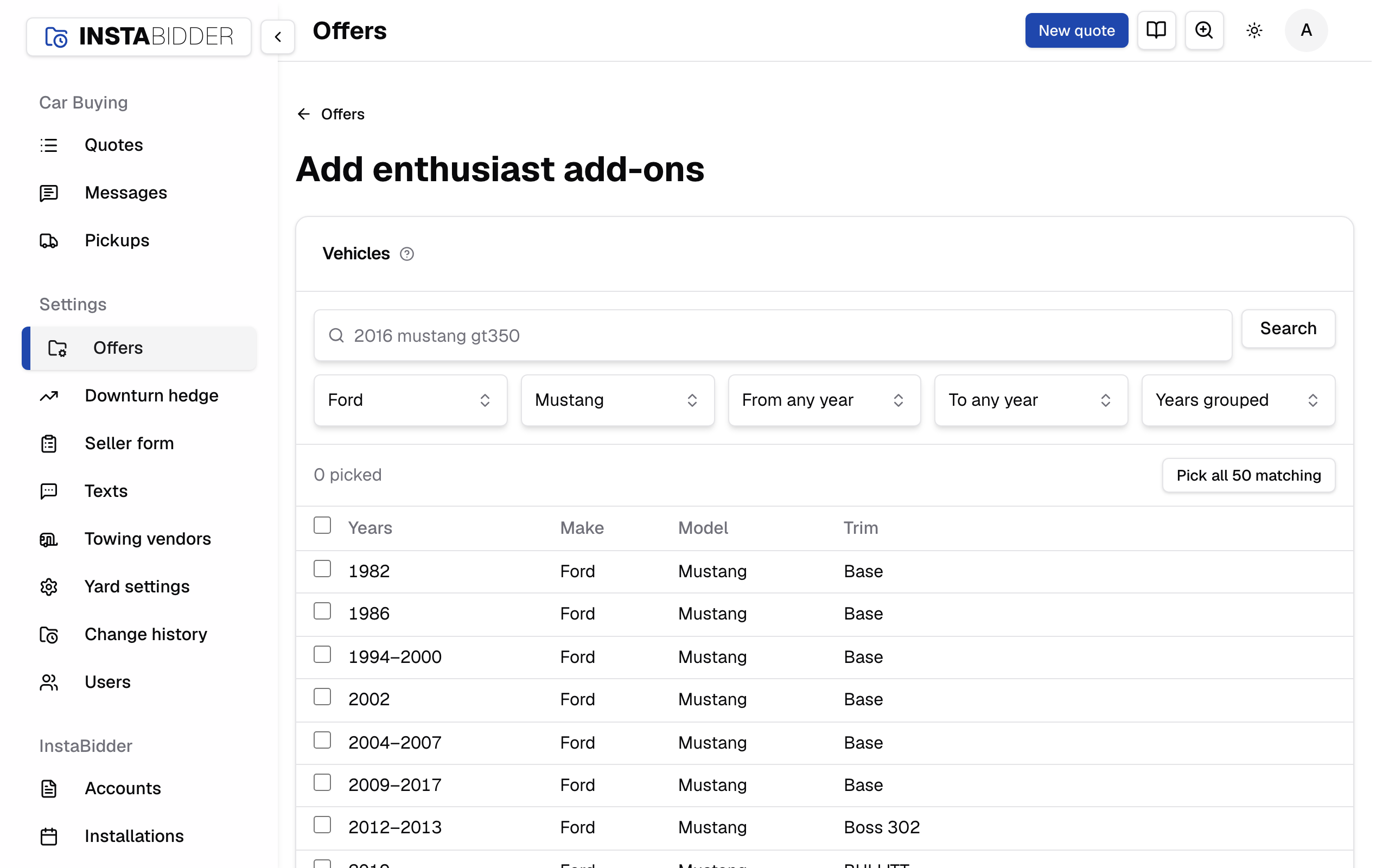
When nothing matches, the list reads "No vehicles match", with Clear filters to start the search over. Staff can search the list and clear it too, but can't pick.
To pick:
- Tick a row's box. Hold Shift and tick another to pick every row between.
- The box in the header picks every vehicle on the page.
- Once a make or a search narrows the list, Pick all matching picks every vehicle that matches, on every page. The button names how many, such as "Pick all 212 matching".
- Picks stay as you search, filter and turn pages. The count shows how many you've picked; Clear picks starts over.
- Press Next: set the amount. With nothing picked, the page says "Pick at least one vehicle."
Your picks become one add-on per model and unbroken run of years in which you picked the same trims. A run where you picked every trim covers every trim. A year our vehicle list doesn't have the model doesn't break a run.
For example, picking every 2015–2020 Mustang row makes one add-on, 2015–2020 Ford Mustang, every trim. Picking only the GT rows for those years makes one add-on for the GT trim.
Years, trims and amount
One card per add-on your picks make, named for the vehicle, with the years it's in our vehicle list. Set its years, trims and dollars, then Save.
Each card has its own From, To, Trims and Add to the offer. Under the vehicle's name, the card says which years our vehicle list has it, such as "In the vehicle list 1994–2024". Remove on a card drops that add-on before you save; drop them all and you're back at the vehicle list. Back to vehicles goes back to your picks.
Save adds every card's add-on at once and goes back to Offers, which says how many were saved, such as "Saved 3 add-ons." If any card has a problem, nothing is saved and the card says what to fix:
- "Enter dollars from $0.01 to $100,000."
- "Enter dollars and cents."
- "End on or after the first year."
- "Pick a trim, or choose all trims."
Adding an add-on for a model that already has one doesn't replace it. Both stay on the list, and each car gets the most specific of them.
From
The first model year the add-on covers. It can't be after To.
To
The last model year the add-on covers. And newer also covers model years added to our vehicle list later.
Trims
Every trim covers the model whatever its trim, including when the trim isn't known. Only these trims covers the trims you tick, when the trim is known.
Under Only these trims, the trims sold in the add-on's years are listed with the years each was offered. Trims from other years are folded away under Trims from other years, with how many there are. A trim an add-on names that our vehicle list no longer has shows "not in the vehicle list".
Pick at least one trim, or choose Every trim.
Add to the offer
Dollars this add-on adds to the car's scrap value, from $0.01 to $100,000, before the bid multiple.