Your profile
Change your display name and mobile number, and choose a new password.
Your profile is your own account on your site. Open your avatar in the top bar, the circle with your initial, and choose Profile. Everyone can open their own, Admin or Staff, including while setup is unfinished.
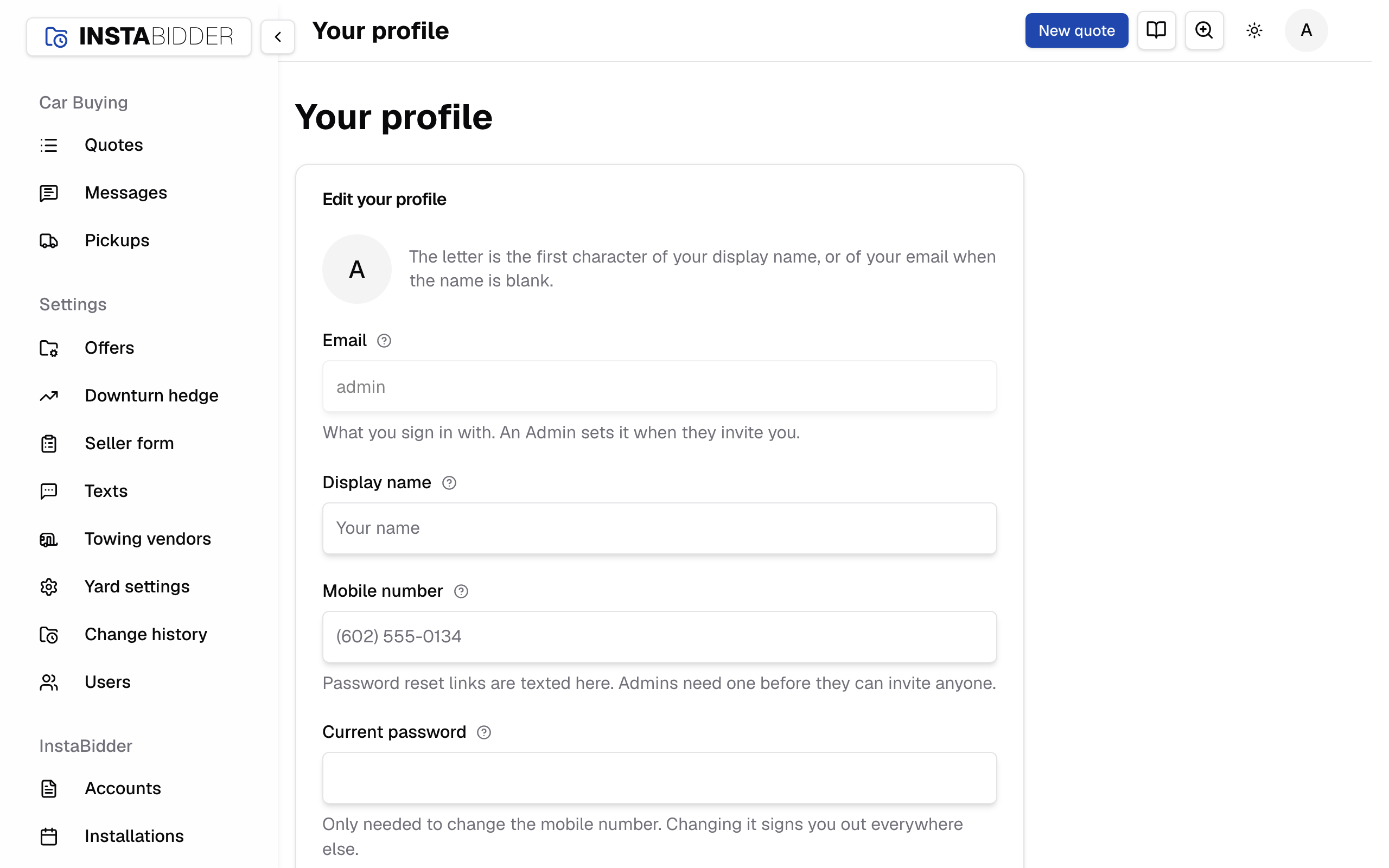
The card is titled "Edit your profile". The circle at its top shows the first letter of your display name, or of your email when the display name is blank. If you're an Admin and setup isn't finished, a Back to setup link at the top takes you back to the setup steps.
Choose Save changes after you edit your display name or mobile number. The page says "Saved." A field that's wrong is marked in red, and nothing is saved.
What you sign in with. An Admin sets it when they invite you, so you can't change it here.
Capital letters don't matter when you sign in.
Display name
Your name as your team sees it, beside your changes and in the list of people. Leave it blank and your email is used instead.
It's also the name on the invite texts you send, if you're an Admin. Up to 120 characters.
Mobile number
Password reset links are texted here. Admins need one before they can invite anyone.
Enter a US or Canadian mobile number, with its area code, for example (602) 555-0134. Brackets, spaces and dashes don't matter. Your site won't save your profile without one, because it's the only way to reset your password if you forget it; it says "Enter a US or Canadian mobile number."
Changing your mobile number needs your current password, so a borrowed session can't move your resets to someone else's phone. It also signs you out of every other device. The one you changed it on stays signed in.
Current password
The password you have now. Your site asks for it when you change your mobile number or your password, so a borrowed session can't take over your account.
On the profile card it's only needed when the mobile number changes; leave it empty otherwise. When you change your mobile number and the password is missing or wrong, your site says "Enter your current password to change the mobile number." and saves nothing. When you change your password and it's wrong, it says "That isn't your current password."
Change password
Choose Change password on your profile to open a short form.
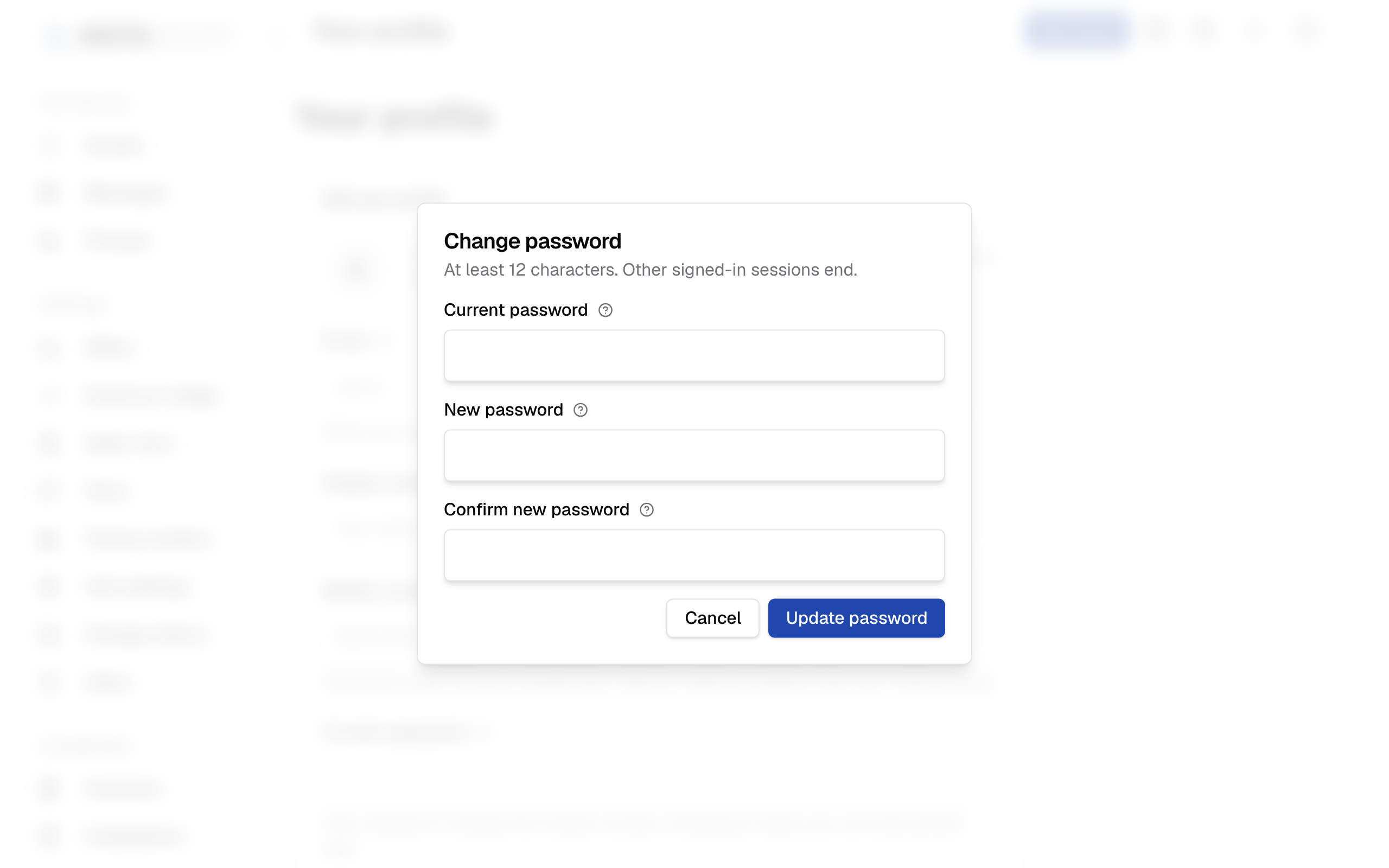
It asks for your current password, then the new one twice, and says "At least 12 characters. Other signed-in sessions end." Choose Update password. Your site says "Password updated."
You stay signed in here. Every other device you were signed in on is signed out, so a lost or borrowed device stops working at once.
Cancel the form and nothing changes. If something is wrong, the form stays open with each problem under its box, and nothing changes until all three pass.
If you forget your password, you can't change it here. Sign out and use Forgot password? on the sign-in page.
New password
The password you'll sign in with from now on. Use at least 12 characters.
Choose something you don't use elsewhere. Your site tells you if it's too short: "Use at least 12 characters."
Confirm new password
Type the new password again so a typing mistake can't lock you out.
If the two don't match, your site says "The passwords don't match." and nothing changes.