Change history
A record of every change to your offers, seller form, texts, yard settings and towing vendors: what changed, who changed it and when.
Change history is the record of what your team changed in your site's settings. When an offer comes out different, a text stops going out, or a tow company is gone, this is where you find out what changed, who did it and when.
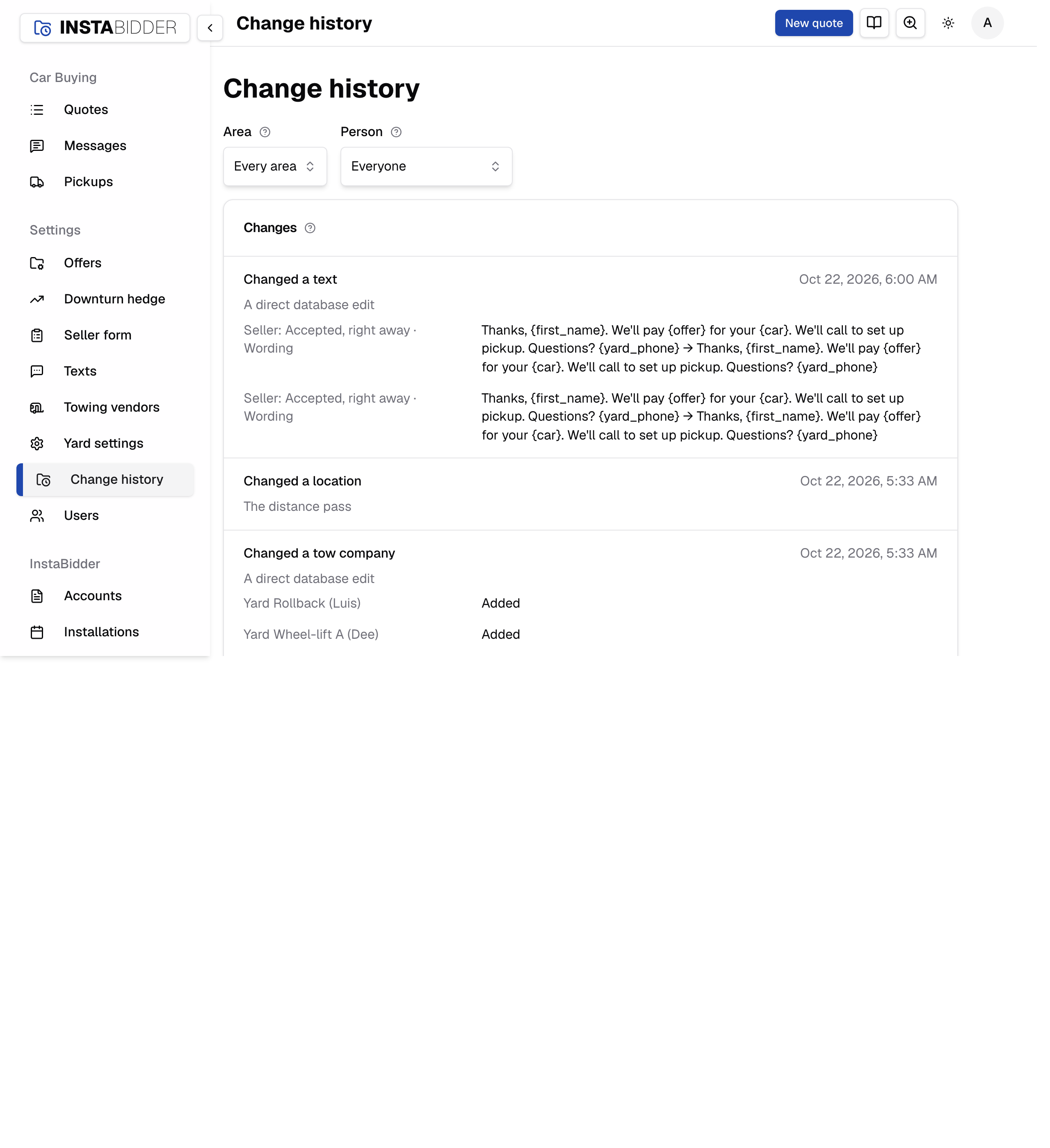
Everyone who signs in can read Change history, Staff included. It's in the sidebar under Settings.
What's recorded
Every change to your:
- Offers: metal prices, the bid multiple, add-ons and deductions, enthusiast add-ons and the downturn hedge: its settings, the disclaimer agreement, the crushed weight on hand, each downturn cut starting and ending, and next period's buyer prices.
- Form: the questions sellers are asked, their answers and their order, where the phone is asked, the look, each read of your website for its colors, and the website the form appears on.
- Texts: the automatic texts, who gets staff texts and the quick replies.
- Yard: your business details, public pages, service area and locations.
- Towing: your tow companies and their rates.
Changes your team makes by saving a setting are recorded. Changes sellers make by filling in the form, and the quotes and pickups your team works every day, aren't settings and aren't here.
Changes
Every change in the area and by the person you picked, newest first: what was done, when, who did it, and each field before and after.
Each entry has:
- A sentence saying what was done, like "Added the tow company Ace Towing".
- When it was done, in your time zone, such as "Oct 22, 2026, 4:05 PM".
- Who did it: the person's name, or what made the change on its own (see Who made it).
- Every field it changed, with what it belongs to and its value before and after, like "Prices · Steel, per lb $0.1800 → $0.2100" or "“Flood” · Dollars −$100.00 → −$150.00". An addition reads "Added".
How values read:
- An empty value reads "—", so a box filled in for the first time reads "— →" and the new value.
- A switch or a tick reads "Yes" or "No".
- Money and prices read as they do on their settings page; the bid multiple reads as a percent.
- A long value, such as a text's wording, is cut short after about 120 characters and ends with "...".
- A removed tow company, question, answer or location shows when it was archived. Nothing is erased.
- A move in the seller form's order has its sentence only.
A page shows 25 entries at a time, with the count at the foot, such as "1–25 of 140 changes", and Previous and Next to go further back. With nothing to show, the page reads "No changes yet".
Who made it
Most entries name the person who saved. Some changes are made by your site on its own, and name what made them:
| Shown as | What it is |
|---|---|
| The downturn forecast | A downturn cut starting, deepening or ending on its own |
| Automatic texts | A change your site's texting made |
| The distance pass | Your site measuring your service area |
| Site setup | InstaBidder setting up your site |
| Password resets | Your site's password reset process |
| A direct database edit | A change InstaBidder support made outside the dashboard |
| The website | A change made by a page with nobody signed in |
| A removed user | Someone no longer on your site; their changes stay |
A change made outside the dashboard has no sentence of its own, so it reads "Changed" and what it touched, such as "Changed prices" or "Changed a tow company", with its fields under it as usual.
Area
Narrow the list to one part of your site: Offers, Form, Texts, Yard or Towing. The default is every area.
Choosing an area reloads the list at once. Change history keeps your choice as you page through the results.
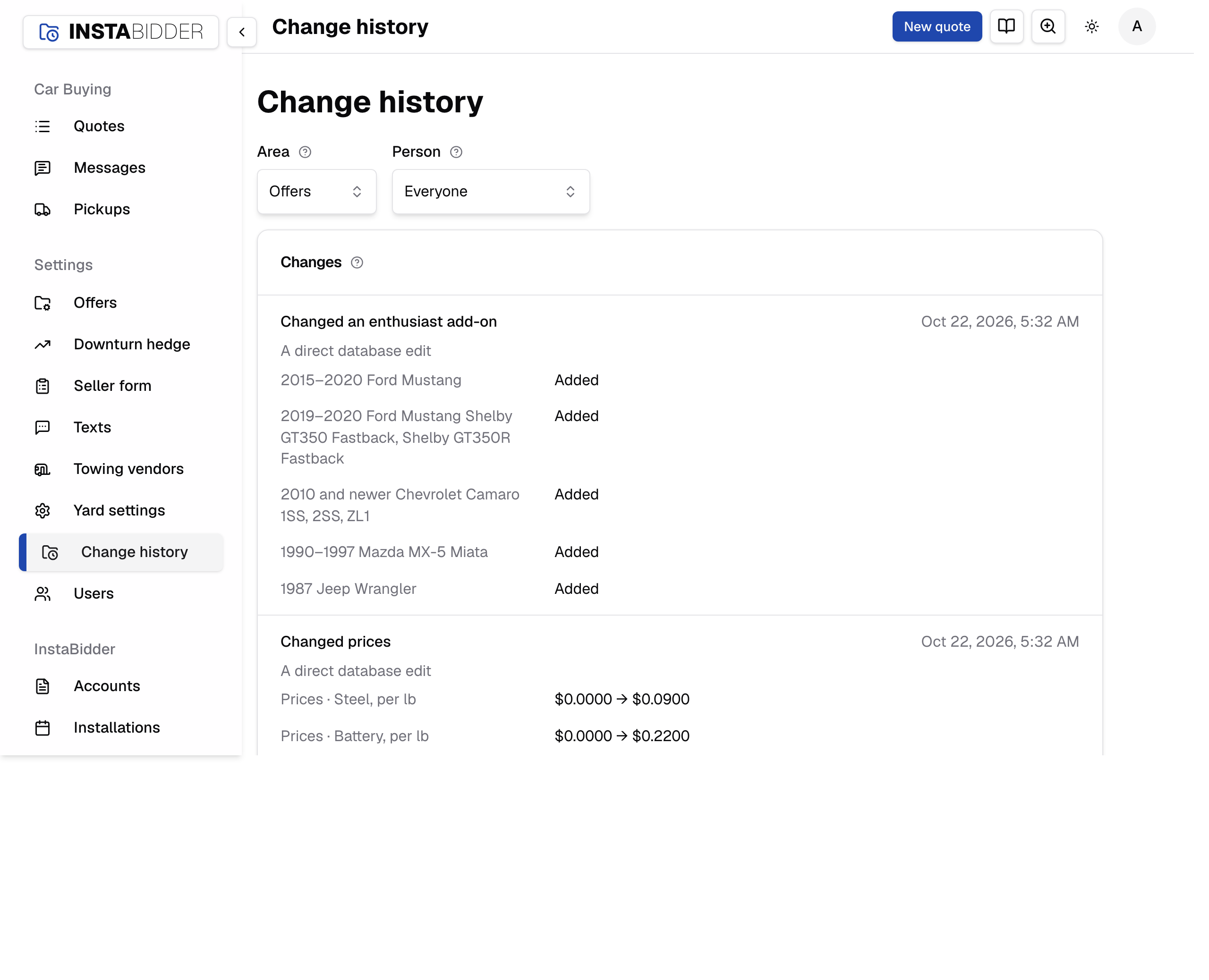
A save that changes something two areas share shows under both. Your website, the seller form's look and where the form asks for the phone are kept with your yard's details, so a change to any of them shows under Form and under Yard.
Person
Narrow the list to the changes one person made. The default is everyone.
The list holds everyone, and everything, that has made a change, including automatic ones like "Automatic texts", sorted by name. A person you've since removed from your site appears as "A removed user", with their changes intact. Use Area and Person together to answer questions like "what did Sam change in Texts?"
Choosing a person reloads the list at once, like Area.
Nothing can be changed or deleted
Change history is a record, not a setting. Nobody can edit an entry or delete one, including Admins. Removing a tow company, a question or a location marks it removed rather than erasing it, and the removal shows up here.
That's what makes it safe to rely on. If a number changed, the record of who changed it and what it was before is still there.
The History buttons
You don't have to come here to see a section's changes:
- Offers has a History button that opens this page already filtered to Offers.
- Yard settings and Towing vendors each have a History button that opens this page filtered to Yard or to Towing.
- Seller form has a History tab with the latest 20 changes to the form, and an All changes button, once there are more, that opens this page filtered to Form. See History.
For Downturn hedge and Texts, open Change history from the sidebar and choose Offers or Texts under Area.
Changes made at the same time
Settings pages watch for two people saving at once. If someone else changed what you're editing after you opened the page, your save is refused with their name, so it can't quietly put their change back.
- A card with Save: the page says, for example, "Sam saved this after you opened it. Save again to replace their changes." What you typed stays in the boxes. Look at their change here first; saving again replaces it with yours.
- A one-click action, such as Up, Down, Turn on or Remove: the page says, for example, "Sam changed this after you opened it. It's current now; try again." The page now shows their change; do the action again if it still applies.
- If it was you, in another tab, the message says so: "You saved this in another tab after this page opened."
- Rarely, a save says "This page is out of date. Save again to keep your changes." Save again.
Changes your site makes on its own, such as a downturn cut, never refuse your save.