Working a quote
One quote's page: the offer, the seller, the pickup and the car beside the whole conversation, and every action you take on it.
A quote's page is where you work one seller from offer to pickup. The record is on the left: what the quote is, what to do next, the offer, the seller, the pickup and the car. The conversation is on the right: everything that happened, the texts and your team's notes.
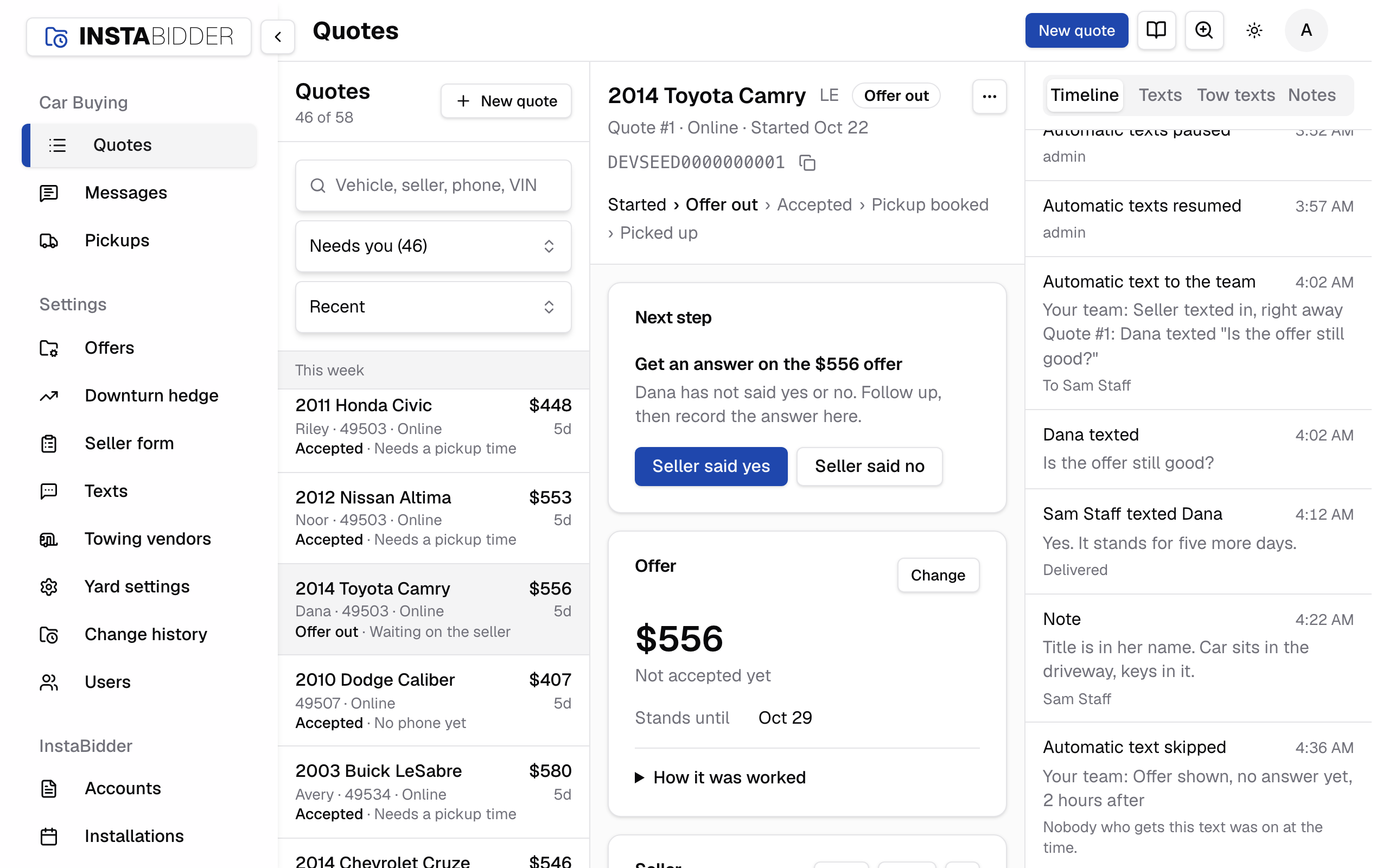
Each side scrolls on its own and keeps its place when you save something, and the conversation comes back on the tab you had open. On a phone, the record fills the screen and a bar at the bottom (Timeline, Texts, Notes) opens the conversation full height; the counts on the buttons are how many texts and notes there are. Tow texts is with the other tabs once the conversation is open.
With no quote open, the space beside the list reads "Select a quote to see its offer, pickup and history."
The address of a quote's page ends in its quote number, so you can send a colleague straight to it.
Header
The car, its trim, the status, and how the quote came in. The line under it reads the quote number, Online or Phone, the day it started and the VIN.
The copy button beside the VIN copies it, for a parts or title lookup.
Under that, the progress strip shows where the quote is: Started › Offer out › Accepted › Pickup booked › Picked up. A declined quote reads Offer declined in place of Offer out.
More actions
The menu at the top right. Copy link to quote copies the page's address; Open in inbox opens the seller's thread in Messages.
Open in inbox shows only when the quote has a number to text.
Next step
One card that says what the quote needs now and holds the buttons for it. It changes as the quote moves on.
| Status | Next step reads | Buttons |
|---|---|---|
| Offer out | Get an answer on the offer | Seller said yes, Seller said no |
| Accepted | Book the pickup | The Pickup card opens under it |
| Booked | Pickup is (the day and window), and which tow company has the car | Mark picked up, Reschedule, Send back to queue |
| Picked up | Done. Nothing left to do | |
| Declined | Declined. Nothing to do unless they come back | Seller changed their mind |
| In progress | Nothing to do yet | |
| Didn't finish | Nothing to do | |
| Out of area | Out of area. Nothing to do | |
| Expired | This quote expired |
When there's no phone number on an offer, the card says so: the seller has to come back to you. While you reschedule a booked pickup, the card reads Move the pickup.
A save you make on the record shows its result in this card: "Marked accepted.", "Marked declined.", "Offer updated.", "Pickup booked.", "Sent back to the queue.", "Marked picked up." or "Saved.". When it's refused, the reason shows here instead; see When an action is refused.
Offer
What you're offering now, in dollars, and what has happened to it. While the offer is out it also shows Stands until, the day it runs out.
The line under the amount says where it stands: "Not accepted yet", "Accepted", "Declined: The offer is too low". When someone changed the offer it reads "Was $410 online." with their reason after it.
Press Change to revise it; see Change the offer. Change is there until the seller accepts.
How it was worked
The offer line by line, for your team: each metal's pounds times its price, each answer at what it was worth, the scrap value, your bid multiple and the offer.
It uses the prices that were in force the moment the seller saw the offer, so a price you change later doesn't move it. A revised offer shows as its own last line.
Never read these lines to a seller or send them. The seller sees the amount only. See Offers for what each line is.
Downturn cut
Shown when the offer was made while a downturn cut was in force: which metal was cut, by how much, and the forecast behind it.
Each line reads the cut, the chance of a fall and the month, with the price before the cut.
If they know the trim
What the offer would be for each trim that carries an add-on, shown when the seller didn't know their trim.
Worth asking about when a seller calls the offer too low: if the car is one of those trims, change the offer to that figure.
Seller
The seller's name and phone, whether they agreed to texts, and whether they came in online or by phone. Call and Text are in its header.
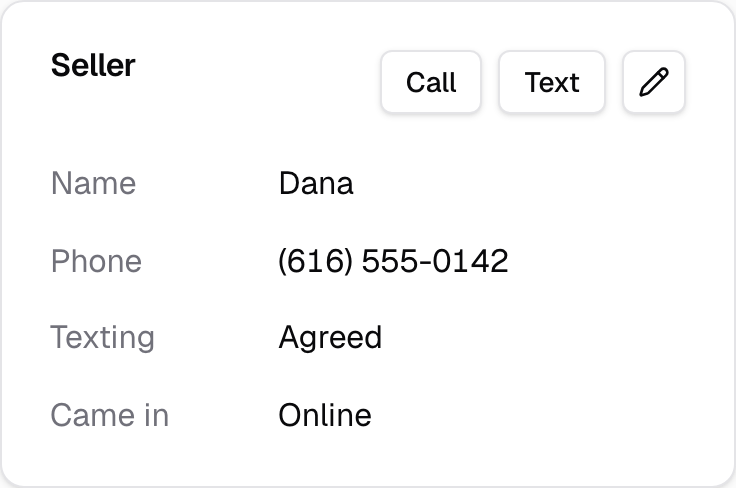
- Call dials the seller's number from a phone, or your computer's calling app.
- Text opens the Texts tab of the conversation. It's hidden when the number sent STOP.
- Texting reads Agreed when the seller agreed to texts on the form, Replied STOP after a STOP, and None yet before a number.
- Came in reads Online or Phone.
- Name and Phone read "Not given yet" until the seller gives them.
- The pencil opens the name and number to edit in place. Press Save. The change is written to the timeline as "Seller details changed".
Mobile number
The number your site calls and texts this seller on. A new number starts without the seller's agreement to texts, so automatic texts stop until they agree.
The old and new number are written to the timeline. Leave it blank to take a number off the quote. A number that isn't a US or Canadian mobile is refused: "Enter a US or Canadian mobile number."
Every automatic text on the quote waits on that agreement, the tow company's included, so a quote with a new number sends none until the seller agrees.
Pickup
Where the car is, which tow company has it, when, and what the tow costs. Once the seller says yes, this is where you book it.
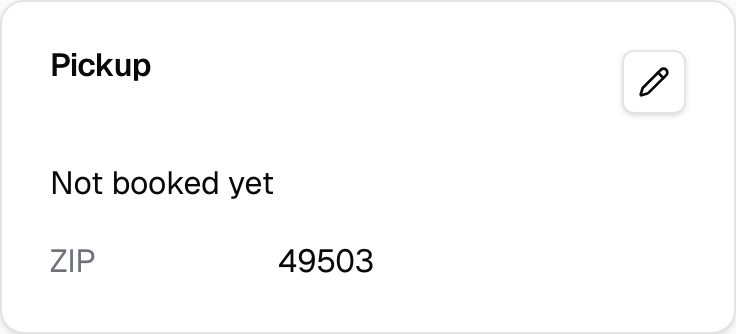
Before a booking, the card reads "Not booked yet" with the seller's ZIP and roughly how far it is from your yard by road. The pencil opens the street address and the note for the driver, which you can fill in at any point before the car is picked up; press Save. The seller's best times open under them, with their own save.
Once there's an address, the card shows:
- the address, and Directions, which opens turn-by-turn directions to it in a new tab;
- From the yard: the road distance and drive time from your nearest location;
- Tow company, Tow cost and Arrival window, reading "Not chosen yet" and "Not booked yet" until the pickup is booked;
- Best times, the days and hours the seller said suit them, or "Any time";
- after the pickup, Picked up, Paid to seller, Title and Scale weight;
- the Note for the driver.
When the map matched only the street or the ZIP rather than the house, a notice says the distance is approximate. When the distance can't be worked out, the card says why: no yard location is on the map yet, or the address wasn't found.
Booking a pickup
When the seller says yes, the Pickup card opens under Next step with the address and three more choices.
- Check the address. The ZIP the seller gave is filled in.
- Pick the Tow company, the Day and the Arrival window.
- Add a Note for the driver if there's anything they need to know.
- Press Book pickup.
Save address only keeps the address and note without booking, for when you know where the car is but not yet when. Under the booking, Best times for pickup takes the days and hours the seller gave you on the call; see Best times for pickup.
Booking writes "Pickup booked with" the company to the timeline, with the day and window. Booking or moving it on the Pickups board writes the same lines. If your pickup-booked texts are on, the seller gets theirs and the tow company gets its text with the car, the address, the day and the window. See Tow company texts.
Book pickup is refused until each choice is made: "Pick a tow company.", "Pick a day. Trucks don't run on Sunday.", "Pick an arrival window.", or "That window has already passed. Pick a later one." A note over 500 characters is refused too.
The Pickups board books the same pickups, with a recommended time and every truck's day beside it.
Tow company
The company that picks up the car. Its rate and the road miles set the tow cost shown on the quote.
Only your active tow companies are listed, by name; add them in Towing vendors. A company you removed stays on the pickups it already has. The list starts on "Pick one".
The company you pick is the one your site texts about this pickup, at the phone number on its towing vendor.
A flat-rate company costs its flat rate. A company that charges per mile costs its hookup fee plus the per-mile charge times the road miles. Until the address has a road distance, the card shows the per-mile rate in place of a total.
Day
The day the truck goes. Today and the six days after it are listed; the arrows step to later weeks. Trucks don't run on Sunday.
Each day shows its date beside it. Sundays read "No trucks" and can't be picked.
Arrival window
The two hours you promise the seller the truck will arrive in, from 8 AM to 10 AM through 3 PM to 5 PM. The seller is told this window.
These are the same windows the Pickups board promises, so a pickup booked on either screen tells the seller one of them, each ending by 5 PM when the trucks stop. A window that has already ended today can't be booked. On the Pickups board the truck gets an exact stop time inside the window; the seller only ever hears the window.
Note for the driver
Anything the driver needs at the car: where it sits, whether there are keys, a gate code. Up to 500 characters.
It shows on the Pickup card, on the Pickups board and in the timeline, and your tow company's pickup text carries it.
Best times for pickup
The days and hours the seller said suit a pickup, between 8 AM and 5 PM in your time zone. The Pickups board recommends a time inside them before any other.
Ask on the call and fill it in from what the seller says:
- Tick each day they gave, Monday to Saturday.
- Pick From and Until for that day. Until has to be after From.
- Press Save best times.
Leave every day unticked for a seller who can do any time; the card then reads "Any time". It's open with the booking once the seller says yes, and the pencil opens it at any point before the car is picked up. Staff can fill it in as well as Admins.
Each save is written to the timeline in your name, such as "Best times saved: Mon–Fri 9 AM–noon", or "Best times cleared" when you untick them all. If someone else changed the quote after you opened it, the save is refused with their name: save again to keep yours.
On the Pickups board the seller's best times shade their hours on the Schedule, lead the recommended times, and flag a time you pick outside them.
Conversation
The right side of a quote: Timeline, Texts, Tow texts and Notes. Each tab opens in place; a send or save there stays on the tab.
The page opens on Timeline. The address of the page remembers the tab, so a link you send a colleague opens the same one.
Timeline
Everything that happened to the quote, oldest first, each day marked. Automatic texts still to come are listed at the end under Coming up.
It holds:
- how the quote started (online, or on a call and by whom), with every answer the seller gave, and the first offer;
- every action a person took, in their name and in the words it was recorded in: the offer changed, the seller said yes or no, the pickup booked, moved or sent back to the queue, picked up, the seller's details or address changed, the best times saved, texts paused or resumed;
- every text with the seller and with the tow company about this pickup, once each, who sent it and whether it was delivered: "Automatic text to" the seller or the company, a colleague's name and "texted", or the seller's or company's name and "texted" for a reply;
- the automatic texts that were skipped or failed, and why, such as "No phone number to text." or "This number replied STOP.";
- the texts that went to your team;
- the notes, and when the seller agreed to texts or replied STOP.
Texts
Your thread with the seller, newest at the bottom. Type in the box and press Send; the seller gets it from your site's number.
The thread is every text with the seller's number. The tow company's texts about this pickup are on Tow texts, and the count on the tab (Texts · 2 on a phone) is the seller's alone.
- Texts your site sent on its own are marked Automatic; a colleague's carry their name.
- Under each text you sent: Sending, Sent, Delivered or Not delivered. One that didn't arrive is outlined in red.
- The count under the box is how long the text is.
- Replies show up as they arrive, without reloading the page.
When there's no number on the quote, the tab says "No number to text yet." Before the first text it reads "No texts with" the seller's name "yet". When texting isn't turned on for your site, the box is replaced by a line telling you to call instead. When the number sent STOP, a notice says so and nothing more goes out.
A send that doesn't go says why at the top of the tab, such as "Write a message." or "That number can't get texts. Check it, or call them instead."
Quick replies
Your team's saved texts, filled in for this quote: the seller's name, the offer, the pickup time. Pick one to put it in the box, then edit and send.
Quick replies are written in Texts › Quick replies. One that names a detail this quote doesn't have yet, such as a pickup time before one is booked, is left out of the menu. When none is left, the Quick replies button isn't shown, here and on Tow texts alike.
Automatic texts
The line above the box says when the next automatic text goes, or that they're paused. Pause stops them for this quote only; Resume starts them again.
The line reads one of:
- Next automatic text and when;
- Automatic texts paused;
- No number agreed to automatic texts, when the quote has no number the seller agreed to be texted on;
- Automatic texts on, when none is due.
Pause when you're handling the seller yourself and don't want a reminder landing in the middle of it. Your own texts still go. Pausing and resuming are written to the timeline, and the tab reads "Automatic texts about this quote are paused." or "are back on." Which texts go, and when, is set in Texts.
Pause holds every automatic text on the quote, including the tow company's pickup texts and the ones to your team.
Tow texts
Your thread with the tow company on this pickup, with its own box and quick replies. It's the company's whole thread, not only this car.
The tab reads "No tow company chosen yet" until a pickup is booked, the company's name and "has no phone number" when the number on its towing vendor can't be texted, and "No texts with" the company's name "yet" before the first text. The timeline shows only the texts about this pickup.
- The box reads "Text" with the company's name and number. Type and press Send; the company gets it from your site's number, word for word, without your legal name in front. It's filed with this quote.
- Quick replies offers your tow company replies filled in for this pickup: the quote number, the car, the address, the day and the window. It shows when at least one has every detail it needs.
- Automatic texts to the company are marked Automatic, a colleague's carry their name, and each shows Sending, Sent, Delivered or Not delivered. The company's replies show up as they arrive.
- When the company replied STOP, the tab reads "This number sent STOP. Nothing further goes out." and has no box, until the company replies START. While texting isn't turned on for your site, the tab has no box either.
- When the pickup goes to another company, goes back to the queue, or the offer is declined, the company that was texted about it can be told it's cancelled; see Pickup cancelled. That text shows in its thread in Messages and on this quote's Timeline, not on this tab once another company has the pickup.
The tow company never gets the seller's number or a link to the quote in any text. The Note for the driver is in its pickup text; a note changed after that text went isn't sent again, so text the change from here. Tow company texts covers what it's sent, what it can be sent, and where its replies land.
Notes
Notes for your team, never sent to anyone: who holds the title, where the car sits, what was promised. Each carries the name of the person who wrote it.
Type in the box and press Save note. Notes appear in the timeline too. With none yet, the tab reads "No notes yet". An empty note is refused: "Write a note."
Seller said yes
Records that the seller accepted the offer. The quote moves to Accepted and the Pickup card opens so you can book the tow.
Use it when the seller says yes on the phone or by text. A seller who accepts on the form is recorded the same way, without you. If your accepted text is on, it goes to the seller.
Seller said no
Records that the seller turned the offer down, with their reason. The quote moves to Declined.
It opens a short form with a reason and a note. Press Seller said no to record it.
A declined quote can come back. Seller changed their mind on the Next step card records a yes on the same offer. Or change the offer and ask again.
Reason
Why the seller passed: the offer is too low, just exploring, selling to someone else, or other. It shows on the list and decides which follow-up text goes.
Each reason can have its own automatic text in Texts, so the seller who said "too low" can hear something different from the one who's selling elsewhere.
Note
Anything else the seller said when they passed, in their words. Up to 500 characters. It shows in the timeline under the reason.
Change the offer
Sets a new offer on the quote, replacing the online one. Change on the Offer card opens it; it's there until the seller accepts.
Press Save offer. The quote keeps the online figure: the Offer card reads "Was $410 online." and How it was worked shows your figure as its last line. The change is written to the timeline in your name, with the reason.
New offer
The offer in whole dollars, from $1 to $100,000. It starts at the current offer. Typing the online figure back in takes the revision off.
The seller isn't told on their own: text them or call with the new number.
Why
What led you to change it, such as "Seller has a better offer". Your team sees it on the Offer card and in the timeline; the seller never does. Up to 200 characters.
Reschedule
Opens the booking again on a booked pickup, so you can change the tow company, the day or the window. Press Book pickup to save the move.
A move is written to the timeline. When the day or window changes, your site treats it as a new booking, so the seller and the tow company get the pickup-booked texts again if they're on.
Changing only the tow company, with the same day and window, is written as "Pickup moved", and the new company gets its pickup-booked text if it's on; the seller isn't texted again, since nothing changed for them. The company you took the pickup from isn't texted on its own: tell it from its thread in Messages.
Send back to queue
Takes the time off a booked pickup and puts it back with the ones that need a time. The tow company stays; the seller stays accepted.
Use it when the seller or the truck can't make it and you don't have a new time yet. The pickup shows again under Need a time on the Pickups board.
The seller isn't texted about it. The tow company gets the Pickup cancelled text when that text is on (Tow company texts); otherwise let them know from Tow texts or by phone.
Mark picked up
Records that the car is on the truck: what the seller was paid, how, the scale weight and the title. The quote moves to Picked up.
It opens a short form; press Mark picked up to record it. The button is only there once a pickup is booked, on the quote and on the Pickups board. The details show on the Pickup card and in the timeline.
If your picked-up texts are on, the seller gets theirs, and the tow company gets one if you added a tow company text at Picked up.
Paid to seller
What you paid the seller, in dollars. It starts at the offer; change it when you paid more or less at the car.
Paid by
How the seller was paid: Cash, Check or Other.
Scale weight
What the car weighed on your scale, in pounds, when you have it. Leave it blank if it hasn't been weighed.
A weight under 500 or over 40,000 lb is refused as a typo. The Pickup card reads "Not weighed yet" until it's recorded.
Title received
Ticked when the seller handed over the title. Untick it when the title is still owed; the quote and the timeline then say so.
When an action is refused
Your site checks each action against the quote as it is now, so a quote someone else changed a moment ago can refuse what you pressed. The reason shows in the Next step card.
- "This offer was already accepted." or "This offer was already declined."
- "This quote has no offer yet." or "This quote has no offer to revise yet."
- "Pick a reason." when Seller said no is saved without one.
- "Enter the new offer in whole dollars." or "Enter an offer from $1 to $100,000."
- "Book a pickup after the seller accepts."
- "This pickup is not booked." for Send back to queue on a pickup with no time.
- "Book the pickup before marking it picked up.", "Enter what the seller was paid.", "Choose how the seller was paid." or "That scale weight does not look right."
Reload the quote to see what changed, then try again.
Vehicle
What the car is: VIN, plate, fuel, curb weight, and how it was identified. Before the seller finds the car, it reads Not identified yet.
Identified by says whether the car came from a VIN, a license plate, or the year, make and model the seller picked.
A quote still on the form
While the seller is still answering, the page shows the seller and the car so far, with no offer or pickup.
Next step says what they're doing ("Finding the vehicle", "Vehicle condition"). Nothing needs doing until they reach the offer.