Quick replies
Texts your team sends by hand to sellers and tow companies, written once and filled in for the quote you're working.
A quick reply is a text your team sends often, such as asking a seller for photos or asking a tow company for an ETA. You write it once. When someone on your team opens the menu from a quote or a thread, your site fills in that quote's details, so nobody retypes them.
Quick replies are not automatic. Nothing is sent until someone on your team picks one and sends it.
Replies to sellers and replies to tow companies are kept apart, and each has its own card. Every site starts with a few of each, and you can change, reorder or remove them.
Where they show
Your replies are offered on a quote and in Messages.
- On a quote, the Texts tab offers your replies to the seller, and the Tow texts tab offers your replies to the tow company on its pickup.
- In Messages, a seller's thread offers the seller replies, and a tow company's thread offers the tow company replies, filled in for the quote behind the thread.
A reply that names a detail the quote has nothing for isn't offered in the menu for that quote. For example, a reply with doesn't show on a quote with no pickup booked.
Picking a reply puts its wording in the box, filled in. Nothing goes until you press Send, so edit it first if you need to. A reply goes as it reads in the box: unlike an automatic text, it doesn't open with your legal name. The first text to any number still ends with the opt-out line.
Quick replies to sellers
The replies your team can send a seller. They appear in the menu in the order shown on this card, and a seller can be told only what a seller can be told.
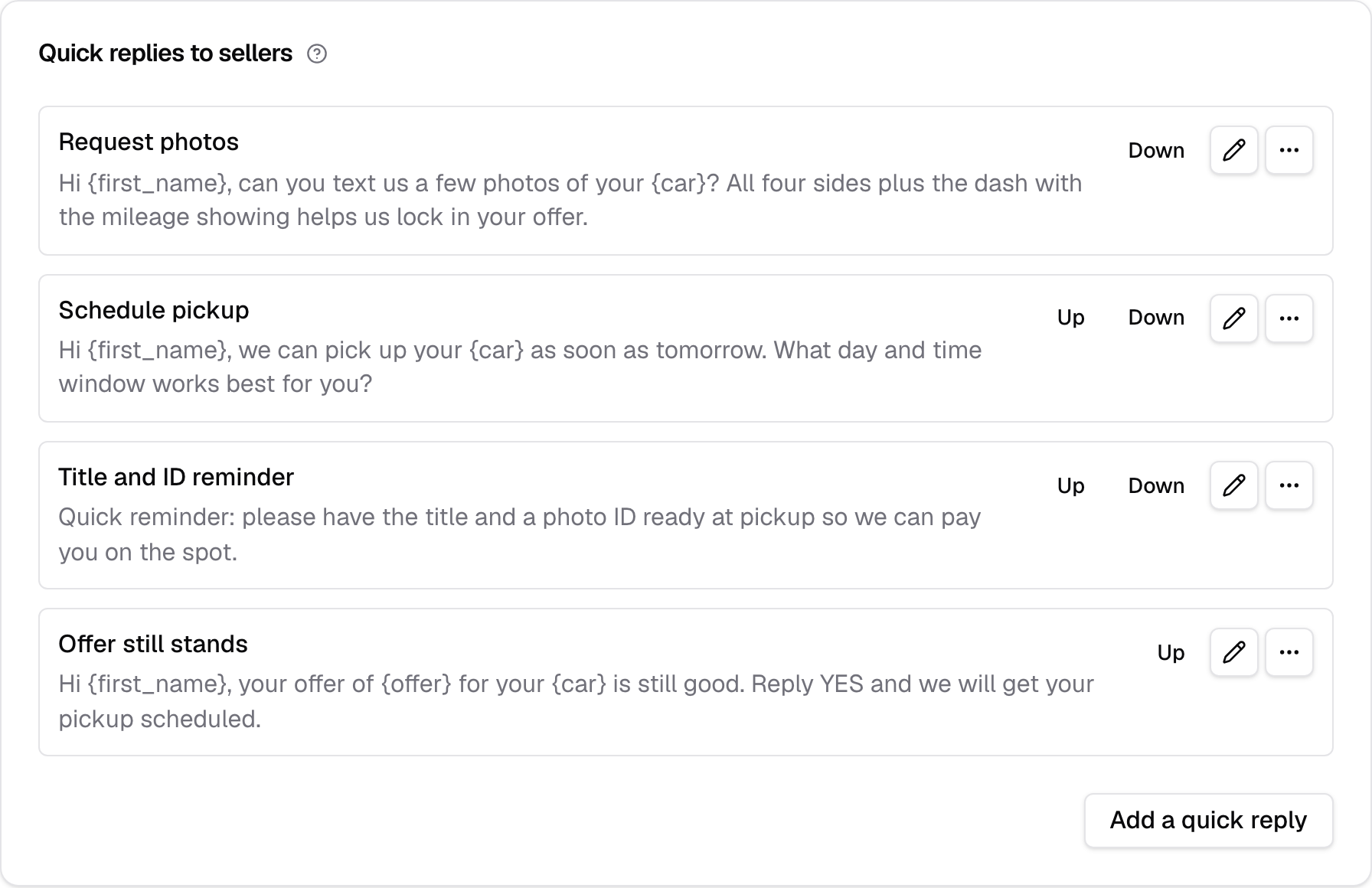
Starting replies: Request photos, Schedule pickup, Title and ID reminder, and Offer still stands.
Quick replies to tow companies
The replies your team can send a tow company about its next pickup. They appear in the menu in the order shown on this card.
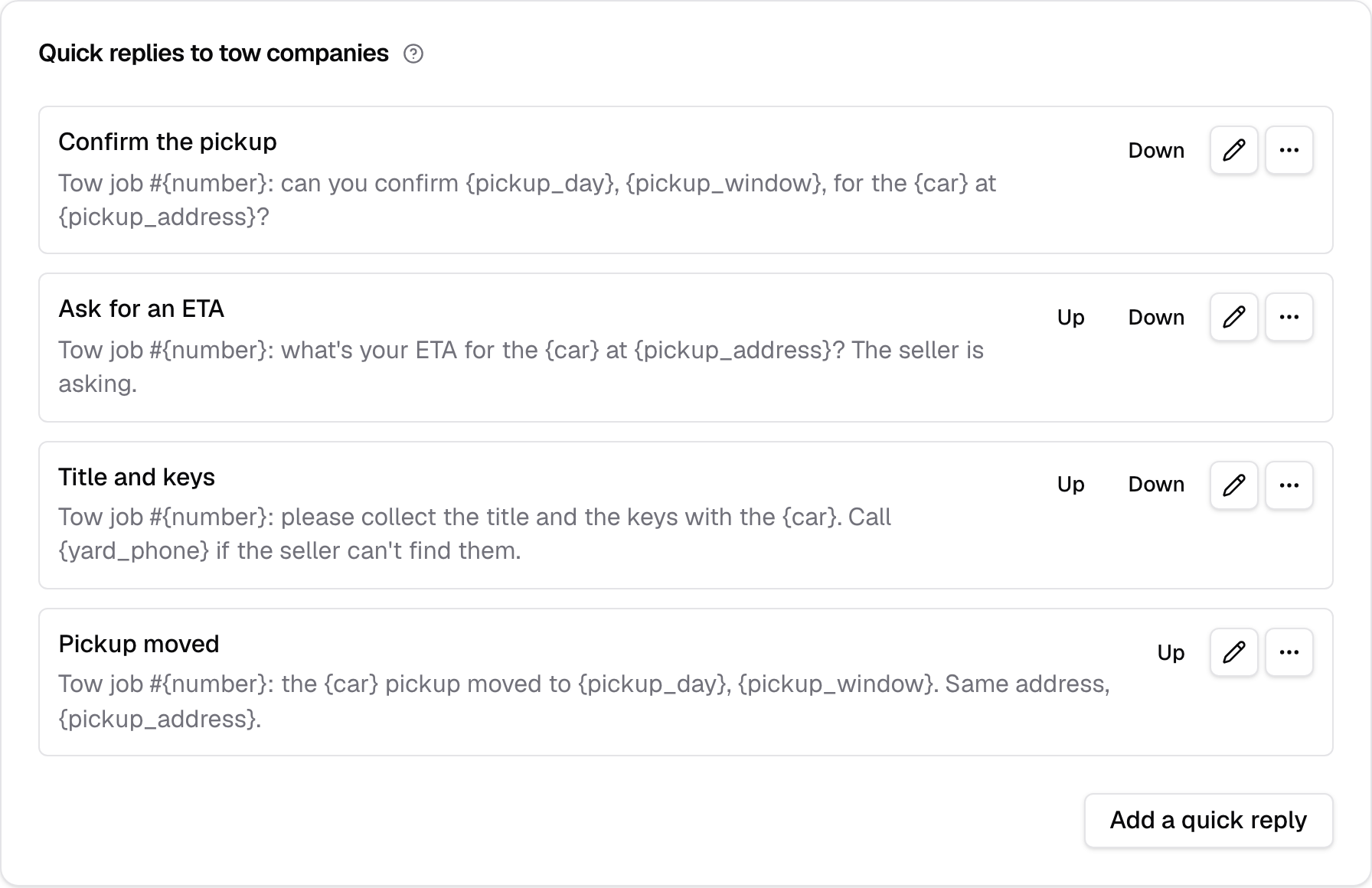
Starting replies: Confirm the pickup, Ask for an ETA, Title and keys, and Pickup moved.
Each starting reply opens with "Tow job #" and the quote number. On a quote's Tow texts tab they're filled in for that pickup; in a tow company's thread in Messages, for the company's next booked pickup. Tow company texts covers texting a tow company end to end.
Name
What your team sees in the menu for this reply. Use a few words that say what the reply does, up to 40 characters.
Sellers and tow companies never see the name, only the wording.
Wording
What the reply says, with details in curly braces that your site fills in for the quote, such as or . Keep it within two texts with the sample details filled in.
A reply can use only the details its recipient may see:
- To a seller or a tow company: , , , , , , , , and .
- Never in a reply: the seller's number, a link into your dashboard, what the seller wrote when they declined, where they left the form, or their latest text. These are for your team only.
If you use one of these, or a detail that doesn't exist, the reply isn't saved and you're told which details it can use, for example " isn't a detail a reply to a tow company can fill in." A reply never carries a breakdown of how the offer was built.
Write the detail exactly as listed, in lower case: or is refused the same way, so it can't go out as typed.
When you edit a reply, a preview shows the wording with sample details filled in, with the character count and whether it fits in one text or two.
Order
Up and Down move a reply earlier or later in the menu. The first reply in the card is the first your team sees. They show once a card has two or more replies.
Add a quick reply
Add a quick reply, at the foot of each card, adds a reply for that card's recipient. Give it a name and wording and save.
A new reply goes to the bottom of its card, and so last in the menu. Move it up with Up. A card with no replies reads "No quick replies yet", and its menu on a quote or a thread is empty.
Edit
The pencil beside a reply opens its name and wording. Change them and save. The change shows in Change history.
Save refuses an empty name ("Name the reply, as the menu shows it."), empty wording, or wording longer than two texts with the samples filled in. If someone else saved the reply after you opened it, the page names who; save again to replace their changes. A reply someone removed meanwhile can't be saved: "That quick reply was removed, so nothing was changed."
Remove
Remove, in the menu beside a reply, takes it out of the menu after you confirm. Texts already sent with it stay in each thread.
The confirmation reads "Remove this quick reply?" with the reply's name. Press Remove to take it out, or Cancel to keep it. The removal shows in Change history.
Only an Admin can add, change, move or remove a reply. Staff see the cards read-only, and use the replies on quotes and in Messages like anyone else.