Look
The seller form's button color, corners and font, so it looks like part of your website.
The form sits inside your website, so it should look like it belongs there. Look sets its colors, corners and font, with a preview that changes as you type.
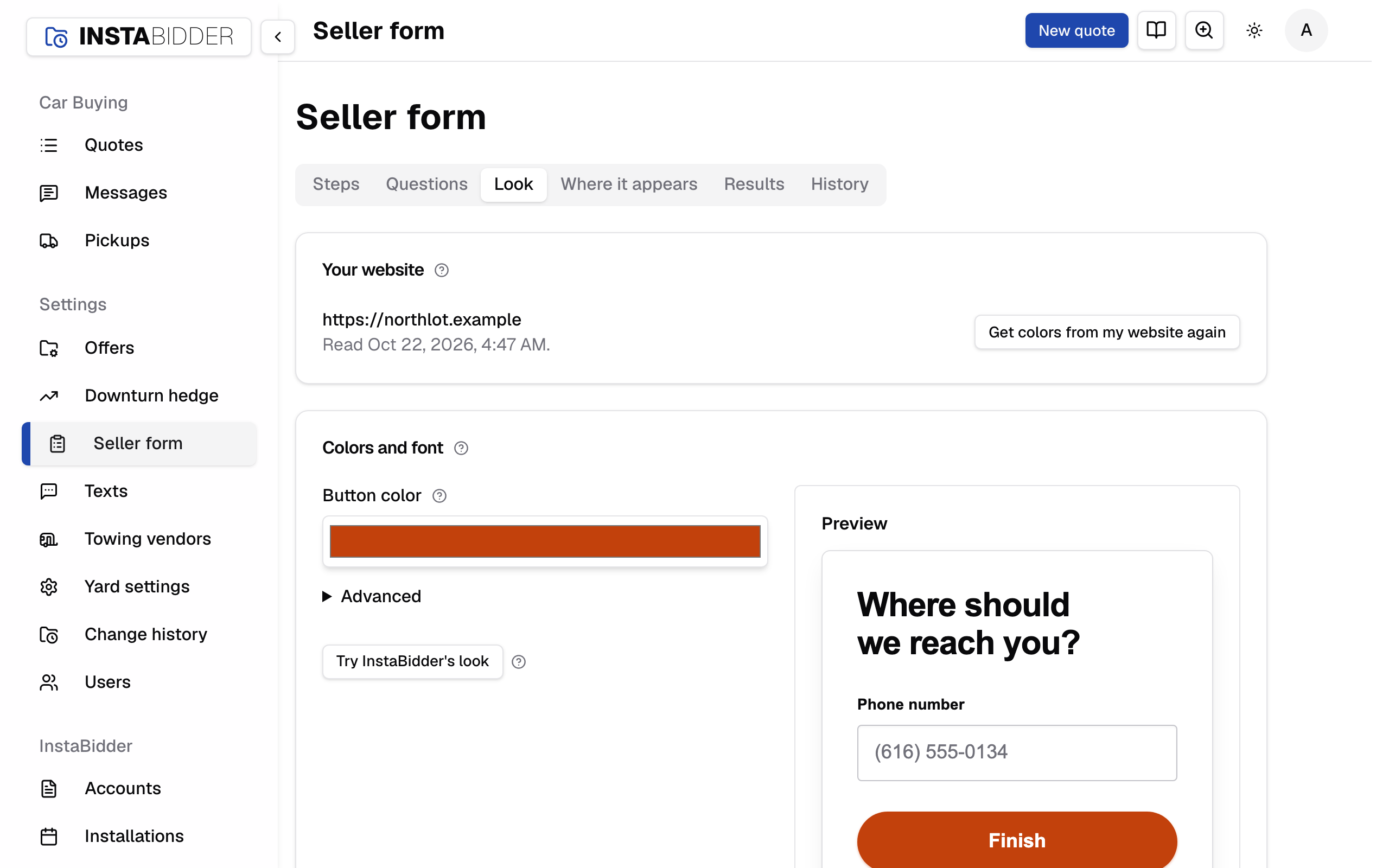
Nothing changes on the form until you click Save. Once saved, the next screen any seller sees has the new look, and the tab says "Saved." Saving the look you already have says "Nothing changed."
Everyone who signs in can see Look. Only an Admin can read the website or save: Staff see the settings greyed out and the preview, with no Save, no Get colors from my website and no Try InstaBidder's look.
Your website
The website the form appears on. Get colors from my website reads it and suggests a button color, corners and font for the form.
The card shows your website and "Not read yet.", or when it was last read, such as "Read Oct 22, 2026, 4:05 PM." The button reads Get colors from my website, then Get colors from my website again.
After a read, the colors it found fill in the card below for you to check before saving. Reading never changes the form on its own: only Save does, and leaving the page keeps your saved look. A website that can't be read shows why in red, and your saved look and the last colors found stay as they are.
Your site reads only your website's public home page and its stylesheets. Each read is in History, including one that failed.
With no website yet, the card reads "No website yet", with Add it on Where it appears to add one. You can set the look by hand either way.
Colors and font
The button color, corners and font sellers see on the form. The preview beside them shows each change as you make it; Save puts it on the form.
During setup this card is called The seller form, holds the same settings, and its button reads Use this look instead of Save. See Website and brand.
If something on the card is refused, nothing is saved and the box is marked:
- "Choose the button color."
- "Enter field corners from 0 to 99, or leave it empty."
- "Enter button corners from 0 to 999, or leave it empty."
- "Enter font names separated by commas, like Lato, Arial, sans-serif."
Advanced opens on its own when one of its settings was refused.
Button color
The color of the form's buttons and highlights. Pick the main color from your website; the button text is made black or white so it stays easy to read.
Very light colors work, but the text on them turns black. Check the preview before you save.
Advanced
Field corners, button corners and the font are under Advanced, closed until you open it. Most yards only change the button color.
Field corners
How round the corners of the form's boxes and cards are, in pixels from 0 to 99. Empty uses the form's standard corners.
0 is square. Match the boxes on your own website's forms if it has any.
Button corners
How round the corners of the form's buttons are, in pixels from 0 to 999. Empty uses the form's standard corners.
A large number, such as 999, makes pill-shaped buttons.
Font
The fonts the form uses, as names separated by commas, such as Lato, Arial, sans-serif. Empty uses a standard font.
The form uses the first font in the list the seller's device has. End with a general one, such as sans-serif, so every device has something to fall back on.
Preview
A screen of the form in the look you're trying. It changes as you change any setting, before you save.
It shows the phone screen, "Where should we reach you?", with a phone box and a Finish button. It's a picture of the form: typing in it or pressing its button does nothing.
Try InstaBidder's look
Fills the card with InstaBidder's own button color and standard corners and font. Nothing is saved until you click Save, or Use this look during setup.
Use it to start over, or when your website's colors don't suit the form.
Saved this way, the form uses InstaBidder's own look rather than a copy of it, so it follows any change InstaBidder makes to its standard look.