Website and brand
Let your site read your website for its colors, adjust the look of your seller form, and save it.
Your seller form appears on your own website, so it should look like it belongs there. This step reads your website, suggests the button color, corners and font it finds, and lets you adjust them with a live preview before you save.
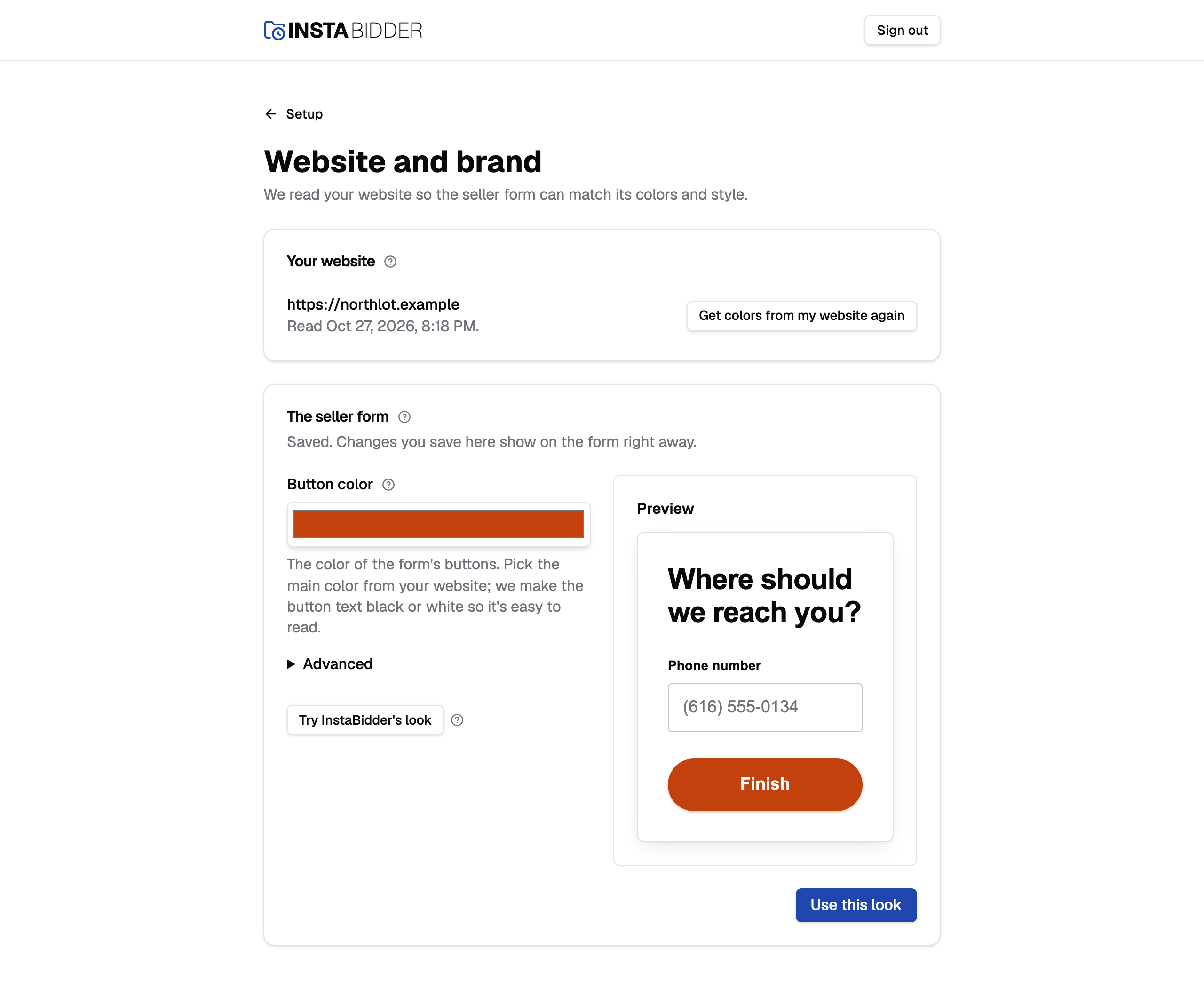
The fields that set the look are described in Look. The Seller form page in your sidebar has the same editor, so you can change the look after setup too.
Your website
The address from Business info. If you haven't entered one, the card says "No website yet" and offers Add it on Business info.
Choose Get colors from my website. Your site reads your homepage and the style sheets on your own website, and keeps only the suggestion it works out: a button color, the corners of fields and buttons, and the body font. It doesn't copy your pages or images.
The card says when your website was last read, or "Not read yet." Choose Get colors from my website again after you redesign your site. Each read is recorded in Change history, under the Form area.
What the read can reach
- Your homepage, and up to 20 style sheets served from your website's own address. Style sheets kept elsewhere, such as on a website builder's or a font service's servers, aren't read, so a site built that way may give no colors.
- Only public websites. An address inside a private network, or on an unusual port, is refused.
- Each file has 10 seconds to arrive and can be up to 2 MB. Your site follows up to five redirects.
- If your website doesn't answer at its secure address, your site tries the plain one too.
When the read fails
If the read fails, the card says why in red, and your last suggestion stays. You can still pick your own colors. The reasons read:
- "The site wouldn't let us read it", with the code your website sent. Some websites block automated reads; set the look by hand.
- "The site answered" with a code, for example 404. Check the website on Business info, then read it again.
- "The homepage is too large to read." Set the look by hand.
- "The site couldn't be reached." Check the address, or set the look by hand.
The seller form
The button color, corners and font your seller form wears, with a preview. It appears once your website has been read or a look is saved.
On the left are the button color and, under Advanced, the corners and font. On the right a preview of your form changes as you type.
At the top the card says where the colors came from:
- "We took these from your website. Change anything and the preview updates as you go." after a first read.
- "We couldn't find colors on your website. Pick your own, or try InstaBidder's look." when the read found nothing to suggest. Choose a button color yourself, adjust anything else and choose Use this look.
- "Saved. Changes you save here show on the form right away." once you've saved a look.
- After you read your website again, it says whether it found colors. What it found fills the fields, but your saved look stays on the form until you save.
You have two ways to set a look:
- Adjust the fields until the preview looks right, then choose Use this look. Your seller form wears that look from then on, on hover and checked states too.
- Try InstaBidder's look fills the fields with InstaBidder's own colors. Nothing is saved until you choose Use this look. Use them as they are and your form keeps its standard look.
Use this look saves the look, finishes the step and returns you to the setup steps, even when you changed nothing. Change history records the look you chose. Reading your website again never changes your live form; only saving does.
A corner or font your site can't use is marked in red and Advanced opens to show it: corners are whole pixels, 0 to 99 for fields and 0 to 999 for buttons, and the font is names separated by commas.
Tip
Pick your website's main color for the button. Your site makes the button text black or white, whichever is easier to read.