Automatic texts
The texts your site sends on its own as a quote moves from the form to the pickup, when each one starts, and how to write and turn on your own.
An automatic text goes out on its own when a quote reaches a point, such as the seller seeing an offer or a pickup being booked. Each point has a card on Texts, and each card holds the texts for that point in the order they go out.
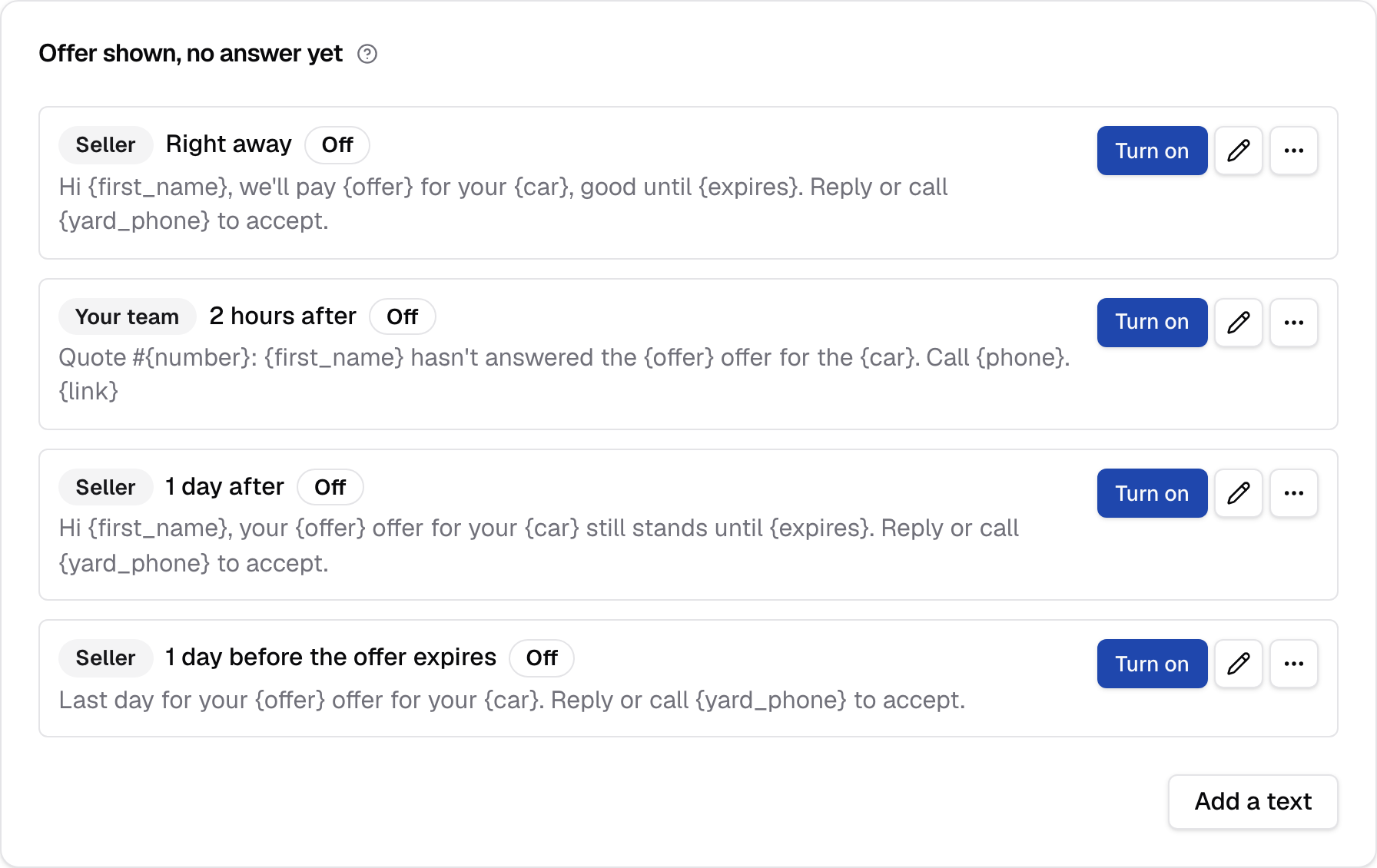
Each text shows who it goes to, when it goes, whether it's on, and its wording. Turn on and Turn off sit on the right. Every text starts off. Turning one on asks you to confirm, and it then goes to quotes started from that moment on.
A text goes once for each quote and point. If a pickup is moved, the quote reaches Pickup booked or moved again and its texts go again. A text more than an hour past its time isn't sent, so a site that was down never sends a burst of old texts.
The points
The cards run in the order a quote moves through them. Under each point is what your site starts you with. All of it starts off, and you can change or remove any of it.
Gave a phone, then left the form
Starts when a seller gives their number and leaves before seeing an offer, and stops when they see one. It only happens when your form asks for the phone before the offer.
Starting texts: one to your team and one to the seller, an hour after they left. The seller's asks them to call you so you can finish the offer.
Offer shown, no answer yet
Starts when the seller sees their offer, and stops when they accept, decline, or the offer expires.
Starting texts: the offer to the seller right away, a heads-up to your team two hours later, a reminder to the seller a day later, and a last-day text to the seller a day before the offer expires.
A seller who asks for the offer by text, or gives the number before the offer, gets the offer text then even while it's off. When the offer text is on, it is what they get, once.
Declined: the offer is too low
Starts when a seller declines because the offer is too low. Starting texts: your team right away, and the seller five minutes later, asking what they would take.
Declined: just exploring
Starts when a seller declines because they are just exploring. Starting text: the seller, a day later, saying the offer is still good until it expires.
Declined: selling to someone else
Starts when a seller declines because they are selling to someone else. Starting text: the seller, five minutes later, asking what they were offered.
Declined: another reason
Starts when a seller declines for any other reason. Starting text: your team, right away, with what the seller wrote.
Accepted
Starts when a seller accepts, and stops when a pickup is booked. Starting texts: a thank-you to the seller, a text to your team to call and book the pickup, and a second text to your team four hours later if no pickup is booked yet.
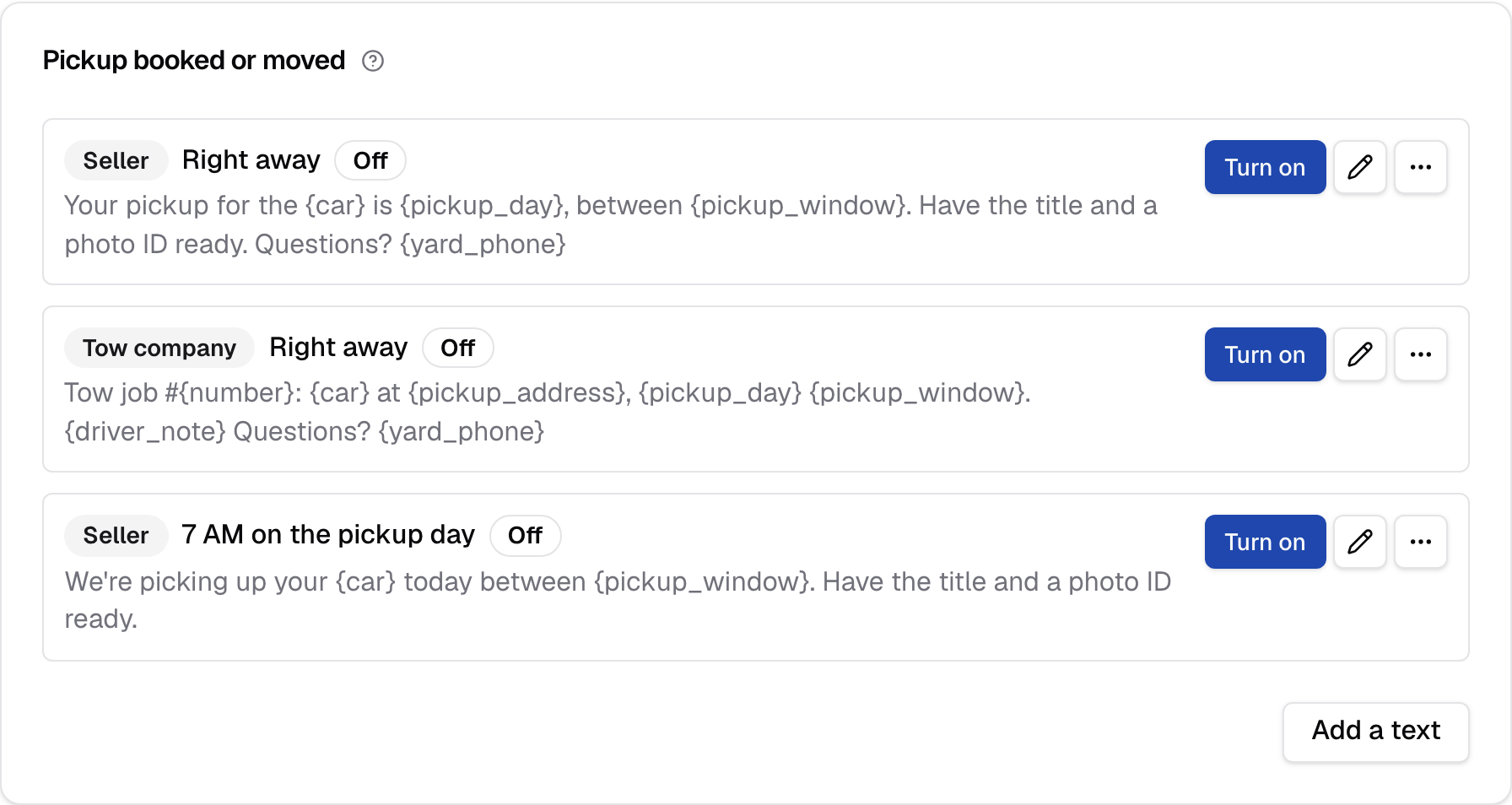
Pickup booked or moved
Starts when a pickup is booked, starts again if it's moved, and stops when the car is picked up. This is one of three points where a text can go to a tow company.
Starting texts: the seller and the tow company right away, and a reminder to the seller at seven in the morning on the pickup day.
The tow company's starting text gives the quote number, the car, the pickup address, the day and the window, the note for the driver when there is one, and your phone: "Tow job #: at , . Questions? ". It goes to the phone number on the company's towing vendor. A move to another day or window sends the texts again; a change of tow company alone sends it to the new company. Tow company texts covers it end to end.
Pickup cancelled
Starts when a tow company that was texted about a pickup no longer has it: the pickup went to another company, went back to the queue, or the offer was declined or expired. Only the tow company can be texted here.
Starting text: the tow company that was told, right away: "Tow job #: is cancelled. Nothing to do. Questions? ". A company gets it once for each pickup it lost, and only when it was sent a text on Pickup booked or moved. The company that takes the pickup over gets its pickup text as usual.
Picked up
Starts when the pickup is marked done. Starting texts: a thank-you to the seller, and one to the tow company saying the car is marked picked up.
The tow company's text reads "Tow job #: from is marked picked up. Thanks. Questions? ". It can go only a set time after the car is marked picked up.
Seller texted in
Starts each time a seller texts your number. Starting text: your team, right away, with what the seller wrote.
Goes to
Who gets this text: the seller, your team, or on the pickup points the tow company. Seller and tow company texts open with your legal name. Texts to your team go only to the people chosen under Your team's texts.
A seller or tow company never gets the seller's number, a link into your dashboard, or what the seller wrote. Those are for your team.
Tow company only appears on Pickup booked or moved, Pickup cancelled and Picked up, because only a booked pickup has a tow company. Pickup cancelled has only the tow company.
A text to the tow company goes to the phone number on the pickup's towing vendor, so it needs a number there that can get texts. See Tow company texts.
When
Whether the text goes a set time after the point starts, a set time before the offer expires, or at a time on the pickup day.
- After it starts counts from the moment the quote reaches the point.
- Before the offer expires is only on Offer shown, no answer yet.
- At a time on the pickup day is only on Pickup booked or moved. The text goes on the day of the pickup, at the time you set.
How long
How long after the point starts, or before the offer expires, the text goes. Enter a number and pick minutes, hours or days. Use 0 to send right away, and up to 30 days.
How long doesn't apply when the text goes at a time on the pickup day. Set Time on the pickup day instead.
Time on the pickup day
The time of day the text goes on the day of the pickup, in your yard's time zone. It appears when When is set to a time on the pickup day.
For example, 7:00 AM sends the text at seven in the morning on the day of the pickup.
Wording
What the text says. Put a detail in curly braces and your site fills it in for each quote, such as or . Keep it within two texts with the sample details filled in.
A text to a seller or tow company starts with your legal name and a colon. Your site adds that, so don't type it. The first text to any number also ends with the opt-out line.
What you can fill in depends on the point and on who gets the text:
- Always: , for your legal name, and for the quote number.
- Once an offer exists: and . Not on Gave a phone, then left the form.
- The car: . On Gave a phone, then left the form, only when your form asks for the vehicle before the phone.
- Pickup points: , and , and for the tow company , the note for the driver.
- Your team only: for the seller's number, and for the quote in your dashboard when your site knows its own address. Also on Gave a phone, then left the form, on the declined points, and on Seller texted in.
A text never carries a breakdown of how the offer was built.
If a quote has nothing for a detail when the text goes, your site uses a plain word instead. becomes "there" and becomes "car".
When you save, your site refuses wording that can't work at that point and tells you which details the text can use, such as " isn't a detail this text can fill in." It also refuses empty wording ("Write what the text says.") and wording that's longer than two texts with the samples filled in.
Write each detail exactly as listed, in lower case. or is refused the same way, so it can't go out as typed.
Preview and length
When you open a text to change it, a preview shows the wording with sample details filled in, with the character count and whether it fits in one text or two. A seller sees their own details, never the samples.
The preview of a text to a seller or a tow company starts with a sample legal name and a colon, where yours goes when it's sent.
On
Whether the text goes out. Turn it on and it goes to quotes started from then on. Turn it off and nothing more goes out from it.
You can't turn a text on if it could never go out:
- Never reached: the point can't happen with your form as it is. Gave a phone, then left the form never happens while your form asks for the phone after the offer.
- A detail it can't fill: the wording uses something the point can't be sure of, such as before your form has asked for the vehicle.
- Nobody gets it: a text to your team that nobody is picked for. Pick someone under Your team's texts first.
When Turn on is refused, the text's card says why, starting "Not turned on." and naming the problem.
Turning a text on asks first: "Turn this text on?" with its wording, and "It goes to quotes started from now on. Nothing already in your quotes gets it." Press Turn on to confirm. Turn off needs no confirmation and stops it at once.
Ticking the On box in an open text and saving asks the same: your wording and timing are saved, then "Turn this text on?" opens. Press Turn on to turn it on, or Cancel to leave it saved and off. Saving a text that's already on asks nothing. The same checks apply.
Your form settings and Users apply the same checks the other way. A change that would leave a text on that can't go out is refused until you turn that text off.
An on text shows "On since" and when it was turned on; an off one shows Off.
Restore default
Restore default puts the wording and timing of a text that came with your site back to what it started as. It's on each text that came with your site. A text you added has no default.
It asks first: "Restore the default?", with the text's wording. Press Restore to put back the starting wording and timing; who it goes to goes back too. The wording you typed is kept in Change history.
You can't restore a text that's on if the default couldn't go out with your form as it is: "Not restored, because the text is on." and why. A text you added reads "This text was added here, so it has no default to restore."
Text me a test
Text me a test sends the text, with sample details, to the mobile number on your profile, so you can see what a seller will read.
If your profile has no mobile number, you're told "Add your mobile number on your profile to get a test text." A test only goes when your site's texting is set up.
The test of a seller or tow company text starts with your legal name, as the real one does. When it goes, the page reads "Sent a test to" your number, "with sample details."
Add a text
Add a text, at the foot of a card, adds another text to that point. It starts as an off text to a seller an hour after the point. Write its wording, pick who and when, and save. Turn it on from the card when it reads right.
A point can hold as many texts as you want, to the same person or to different people.
Remove
Remove, in the menu beside a text, takes the text off its card after you confirm. It stops going out. Texts it already sent stay in each quote's thread.
The confirmation reads "Remove this text?" with its wording. Press Remove to take it off, or Cancel to keep it. The removal shows in Change history, and the page reads "Removed."
A card with no texts left reads "No texts yet". Add a text puts one back.
When a change is refused
If someone else saved a text after you opened Texts, your save is held and the page names who. Save again to replace their changes.
A text someone removed meanwhile can't be changed: "That text was removed, so nothing was changed." Turning a text on or off, restoring or removing it after someone else changed it is refused the same way, naming who; it's current now, so try again.
Only an Admin can change Texts. Staff see every card read-only.